


The Theme Builder feature from Wow Elements allows you to design and customize every part of your WordPress website without writing any code. It enables you to create dynamic templates for headers, footers, single posts, archive pages, and more, giving you full control over your site’s layout and structure. With flexible design options and seamless integration with Elementor, you can build consistent, professional, and visually engaging websites with ease. In this documentation, we will guide you through how to use and customize the Theme Builder feature in Wow Elements.
Where to Find the Theme Builder Feature #
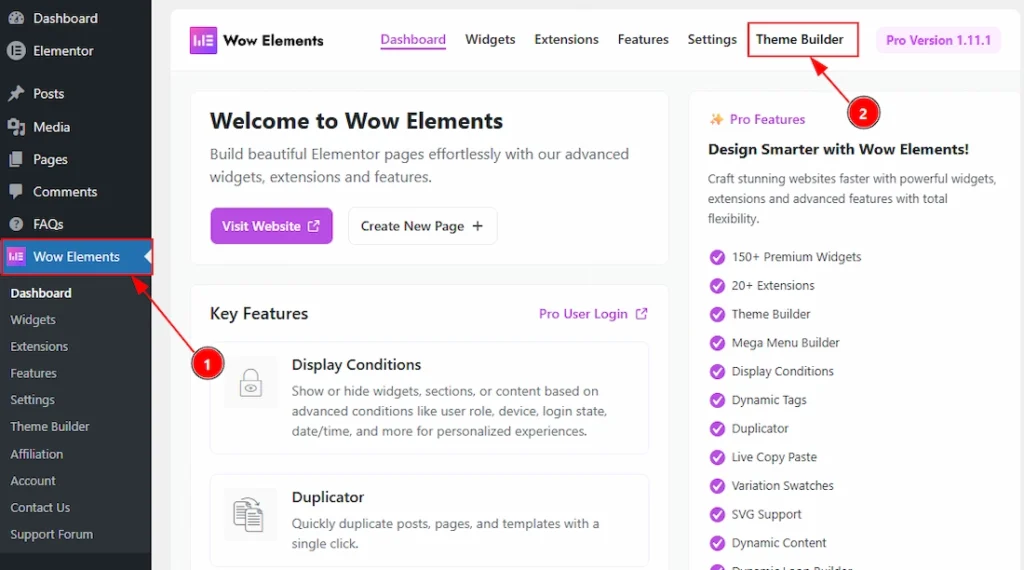
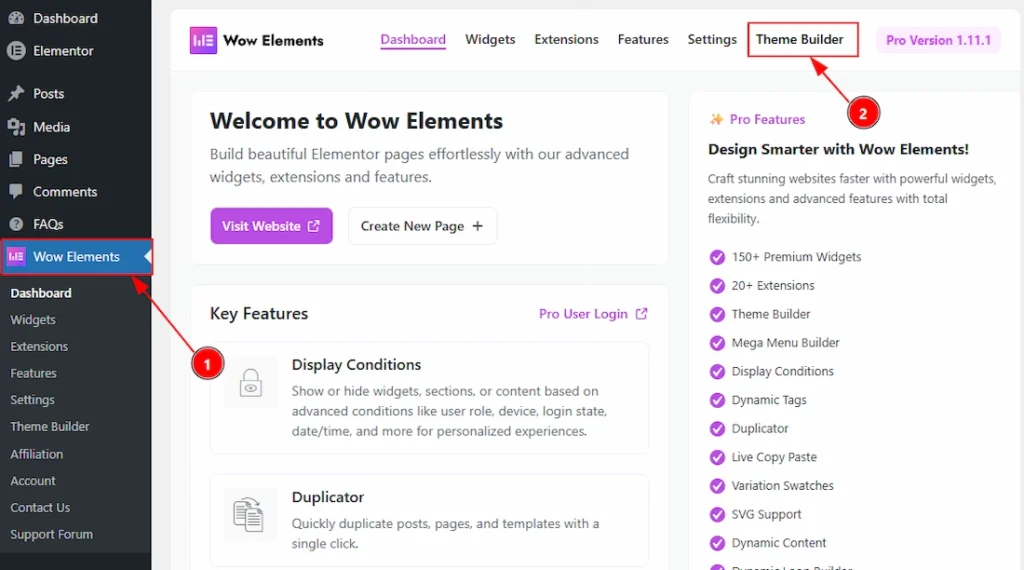
As like other features of Wow Elements you don’t need to enable this feature. To find the Wow Elements Theme Builder feature, you need to active the Wow Elements Pro version first, that mean you need the Premium Version of the Wow Elements. You won’t find this feature on the free version. After activating the premium version of Wow Elements, you can use the theme builder feature automatically. No let’s see where you can get the feature –
1. Go to WP Dashboard and then click on the Wow Elements Section.
2. On the Wow Elements Dashboard you will get to see the Theme builder Tab.
You can go to the Theme Builder in another way. Let see that now –
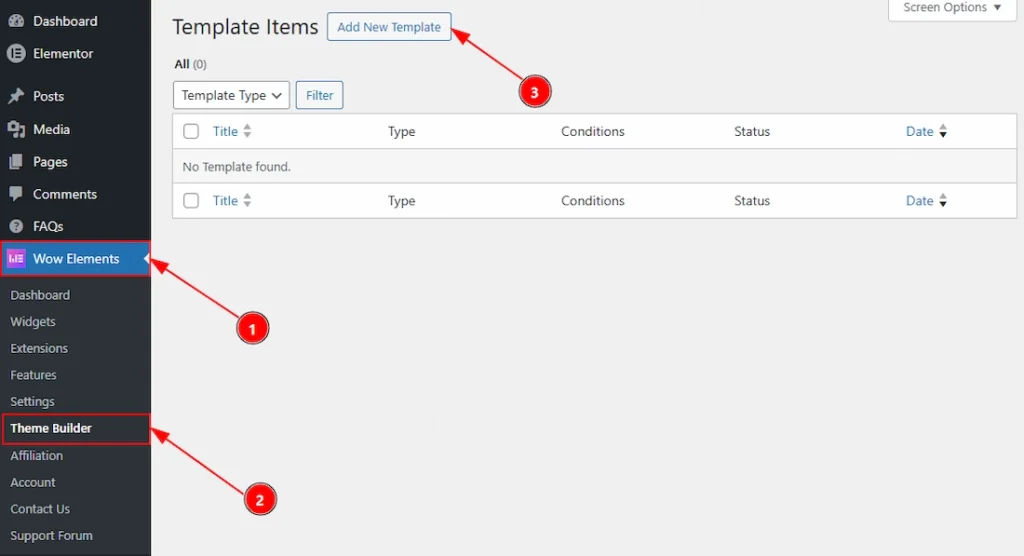
1. Again in the same way go to WP Dashboard and then click on the Wow Elements.
2. Now, check the sub tabs of the Wow Elements and here you will get to see the Theme Builder Tab. Click on that and the Theme Builder Dashboard will appear.
3. You can click on the Add New Template to add template on the theme builder.
How The Theme Builder Feature Works #
After clicking on the Add New Template button, a new pop-up will appear and here you can see the information that you need to create a template. Let’s see what is in this pop-up:
1. Choose Template Type: You can choose the template type that you want with this option.
2. Name Your Template: You can add a name to the title that you are creating with this option.
3. Status: You can change the status of the template to active or inactive with this option.
4. Create Template: After providing all the information, you can click on this button to complete the creating process.
There are several template types available that you can select from the “Select Template Type” field. These templates are organized into different categories based on their purpose. Let’s explore them one by one.
Themes Type Templates #
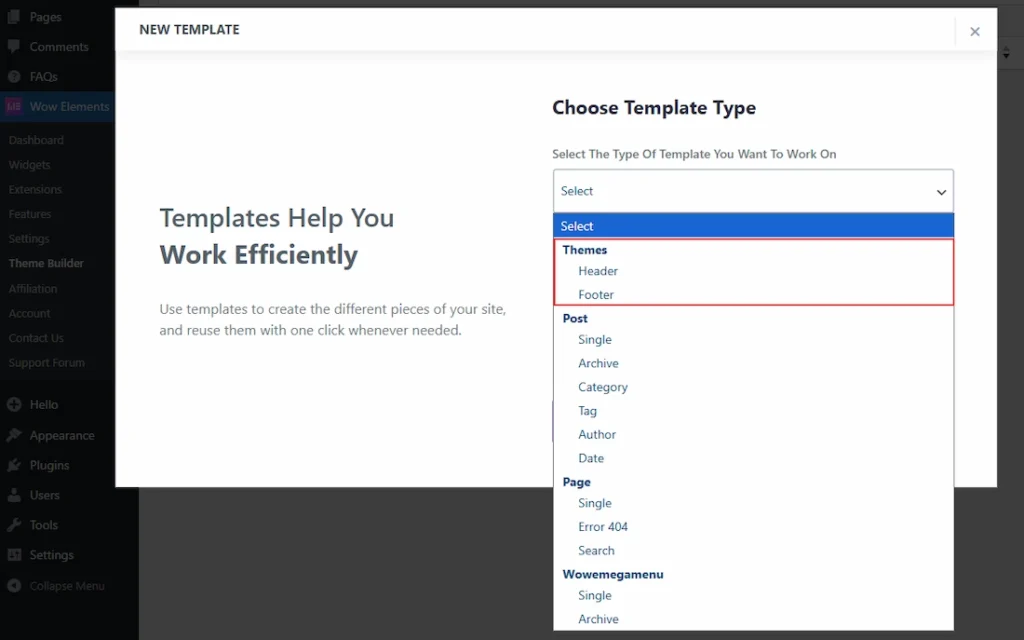
The Choose Template Type dropdown lets you select which site part/template you want to create in Wow Elements Theme Builder so it can be designed in Elementor and applied across your website.If you select from the Themes Type then you will get two options two select. These are –
1. Header: You can create a global header template (top section of the site) that can be assigned to specific pages or the entire site using display conditions.
2. Footer: You can create a global footer template (bottom section of the site) that can be assigned to specific pages or the entire site using display conditions.
Post Type Templates #
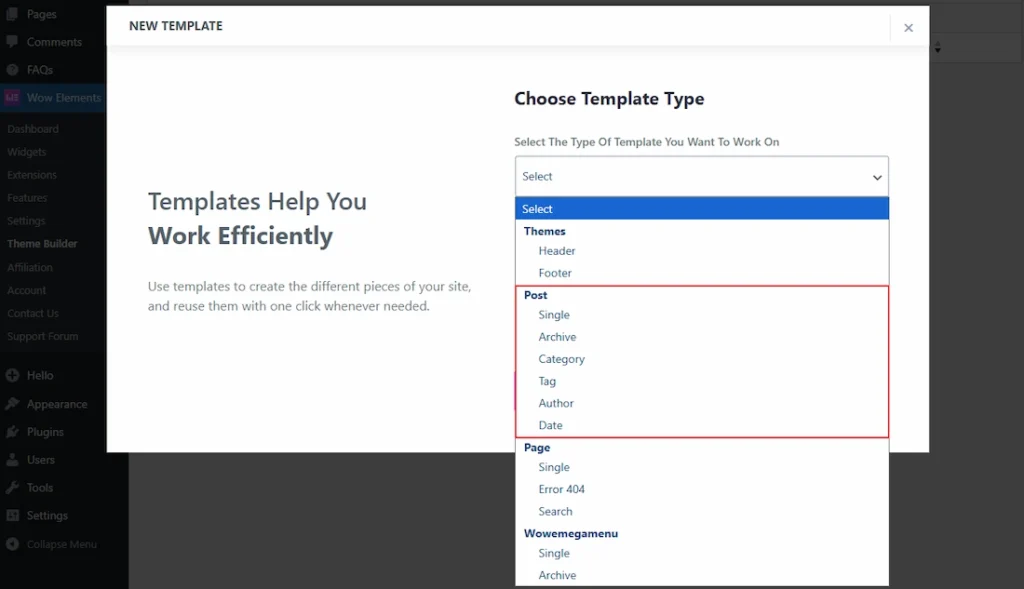
The Post section in Choose Template Type lets you create templates for blog post content and post-related archive pages, so they can be designed in Elementor and applied across your website. You can choose –
- Single: You can create a template for individual blog posts (single post page layout) by selecting this template type.
- Archive: You can create a template for the main post listing/archive layout (where multiple posts are shown) by selecting this template type.
- Category: You can create a template for category archive pages that list posts from a specific category by selecting this template type.
- Tag: You can create a template for tag archive pages that list posts with a specific tag by selecting this template type.
- Author: You can create a template for author archive pages that list posts written by a specific author by selecting this template type.
- Date: You can create a template for date-based archive pages that list posts by date (day/month/year) by selecting this template type.
Page Type Templates #
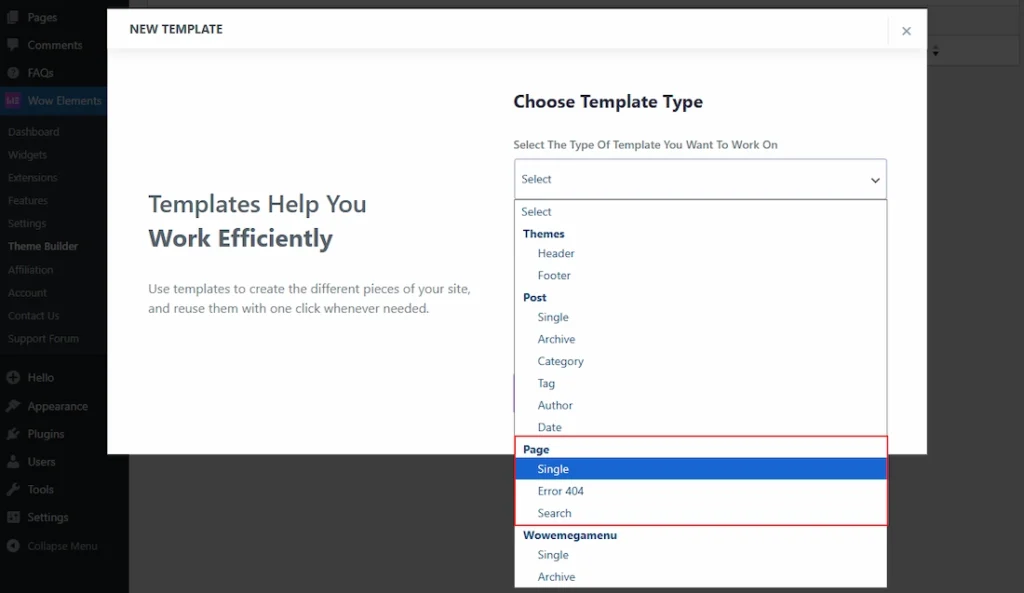
The Page section in Choose Template Type lets you create templates for standard WordPress pages and key system pages, so they can be designed in Elementor and applied across your website.
- Single: You can create a template for individual pages (default page layout).
- Error 404: You can create a custom 404 (Page Not Found) template shown when a visitor opens a non-existing URL.
- Search: You can create a template for the search results page that displays results for a visitor’s search query.
Wowemegamenu Type Templates #
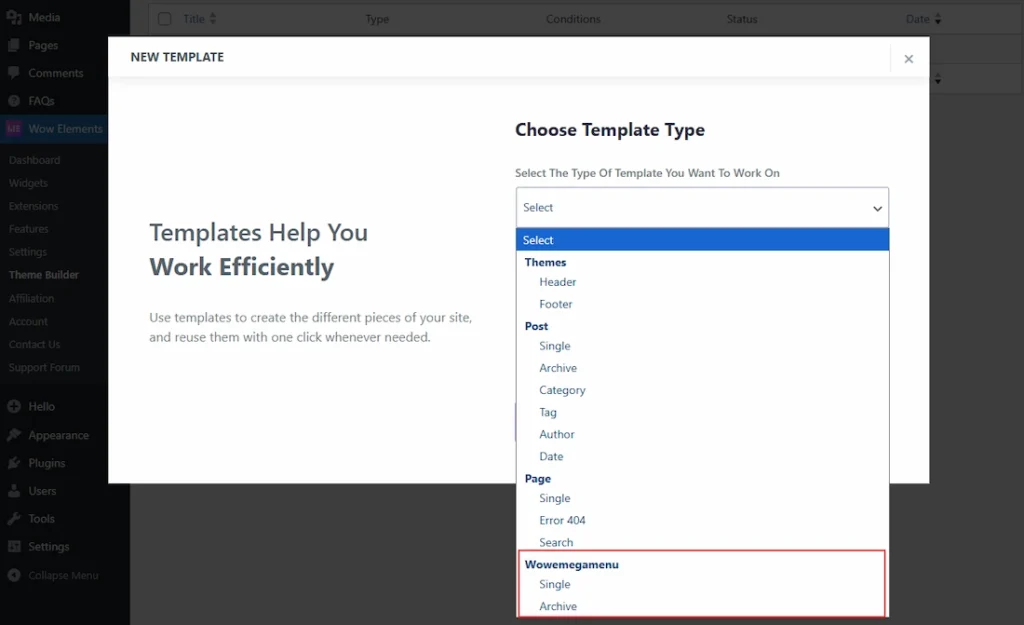
The Wowemegamenu section in Choose Template Type lets you create templates specifically for the Wow Elements Mega Menu, so the menu layouts can be designed in Elementor and reused in navigation.
- Single: You can create an individual mega menu template (a single menu layout that can be used as a mega menu dropdown/content).
- Archive: You can create an archive-style template for mega menu items, used to design listing/layout views related to mega menu content (where applicable).
Customizing the Theme Builder Feature #
Go to Wow Elements Dashboard → Theme Builder → Add New Template
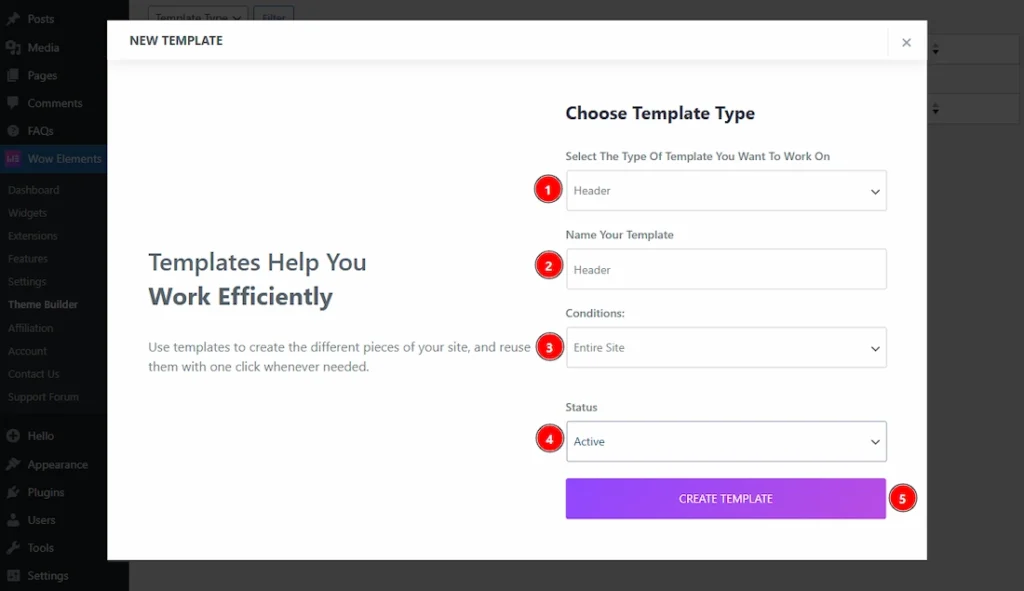
To Provide an example we have choose to select a template and create it to show you how it works and how can you customize it. Let’s have a look below –
1. Choose Template Type: We have selected the template type as Header in this field./
2. Name Your Template: We have added the name of the Header template that we are going to create and customize.
3. Conditions: You can choose the condition for the header template to add it to entire site or any singular site with this option.
4. Status: You can select the status of the template to keep it active or inactive with this option.
5. Create Template: You can click on this button to create the template.
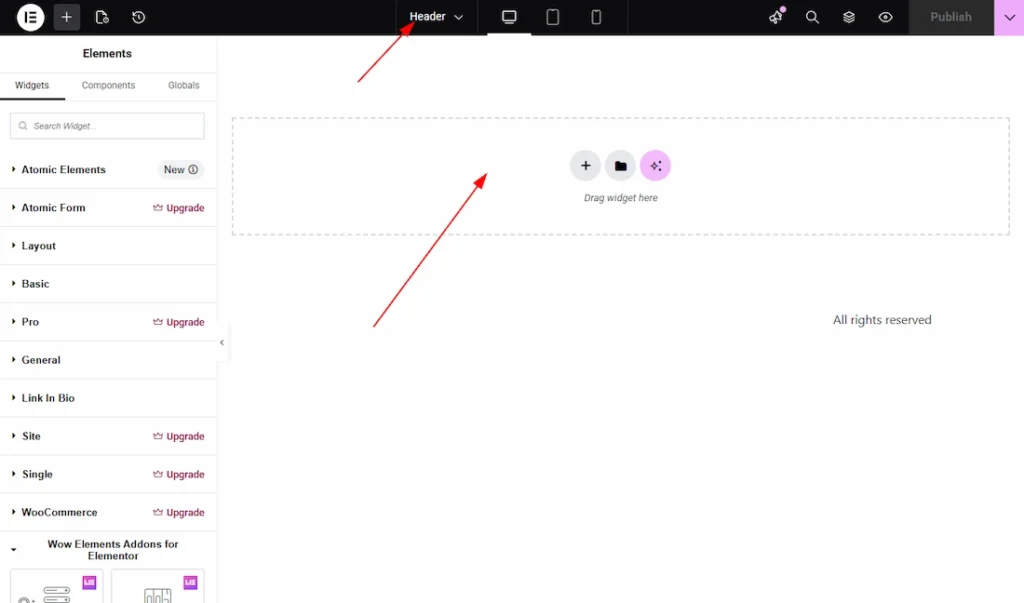
After clicking to the create template it will redirect you to the elementor where you can create your header design as you want.
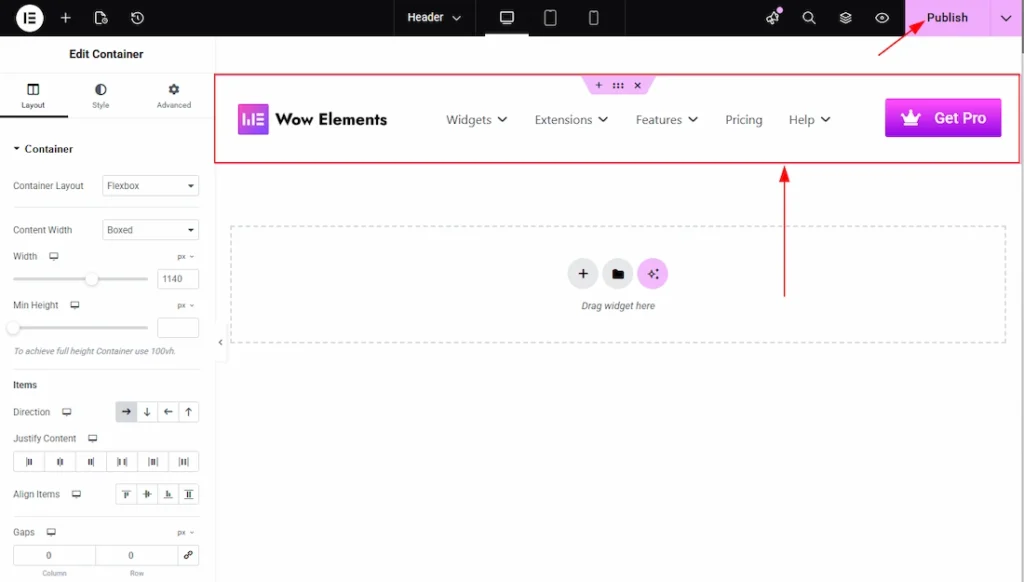
After completing the design that you prefer, please click to the Publish button to publish the design that you made
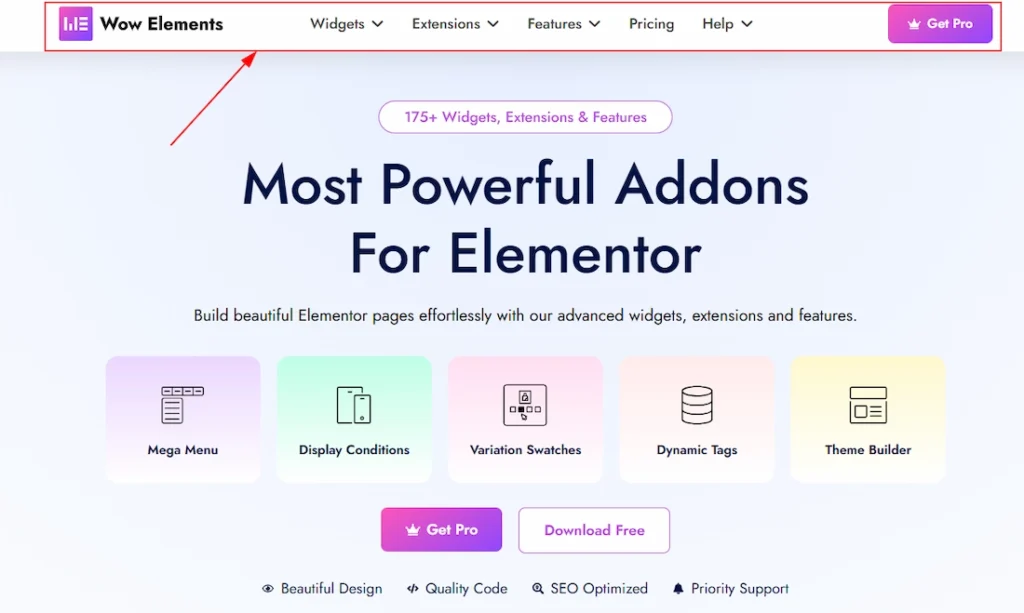
Now you can check to any page or posts the header will show above of the design.
All done! You have successfully customized the Theme Builder on your website.
Video Assist #
You can also watch the video tutorial to learn more about the Theme Builder. Please visit the demo page for examples.
Thanks for being with us.