


The Product Reviews widget from Wow Elements Pro is a powerful tool for displaying WooCommerce product reviews and customer ratings on your website. It allows you to showcase authentic customer feedback in a clean and organized layout, helping build trust and confidence among potential buyers. With flexible layout, styling, and typography controls, you can easily customize the appearance of the reviews section to match your store’s branding and enhance the overall shopping experience. In this documentation, we will guide you through how to use and customize the Product Reviews widget in Wow Elements Pro.
Enable the Product Reviews Widget #
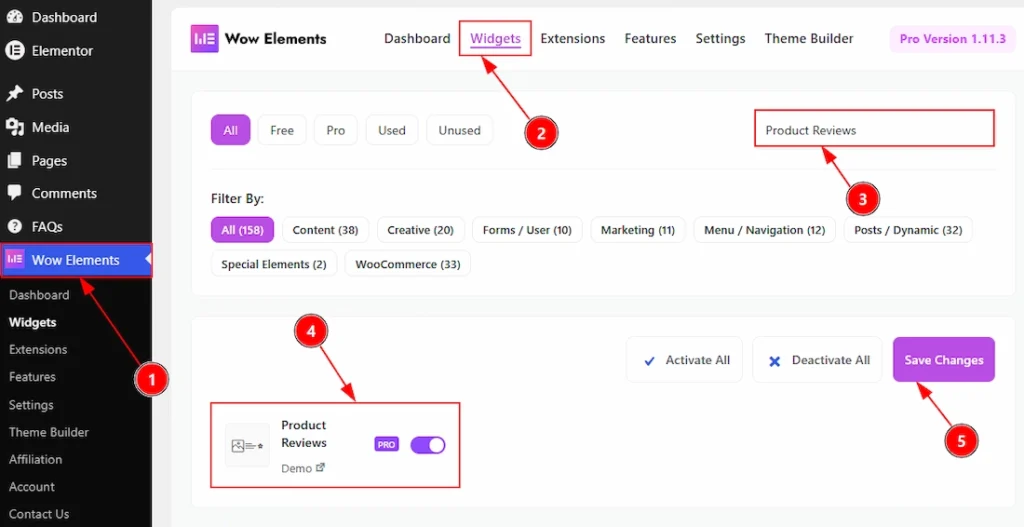
To use the Product Reviews by Wow Elements Pro, first, you have to enable the widget.
- Go to WordPress Dashboard → Wow Elements Pro Plugin dashboard.
- Then Click the Widgets Tab.
- Search the Product Reviews Widget Name.
- Enable the Product Reviews Widget.
- Hit the Save Settings Button.
Inserting the Product Reviews widget #
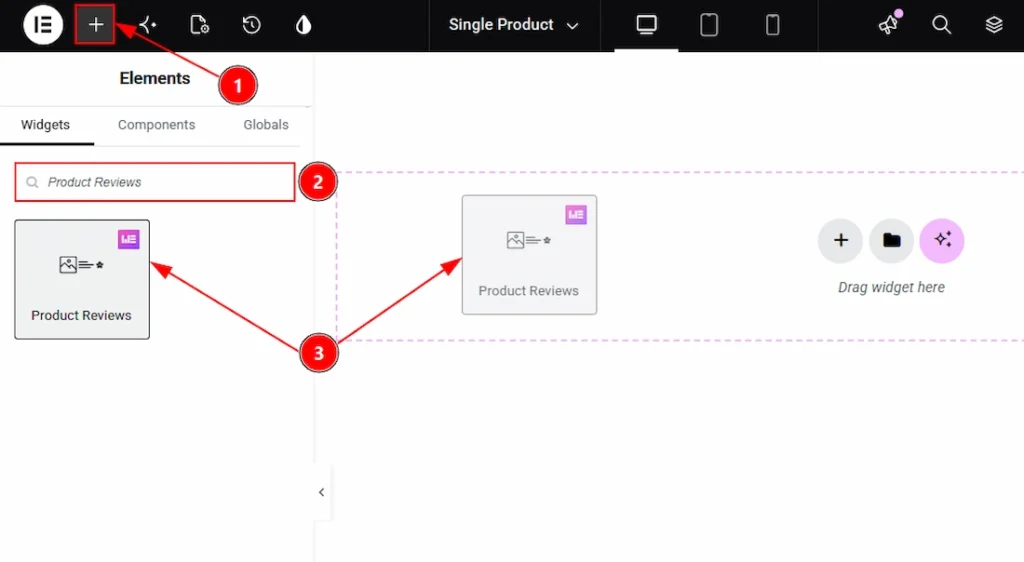
1. Go to the Elementor Editor Page and Hit the “+” icon Button.
2. Search the Product Reviews widget.
3. Drag the widget and drop it on the editor page
Content Tab Overview #
Layout Section #
Go to Content → Layout
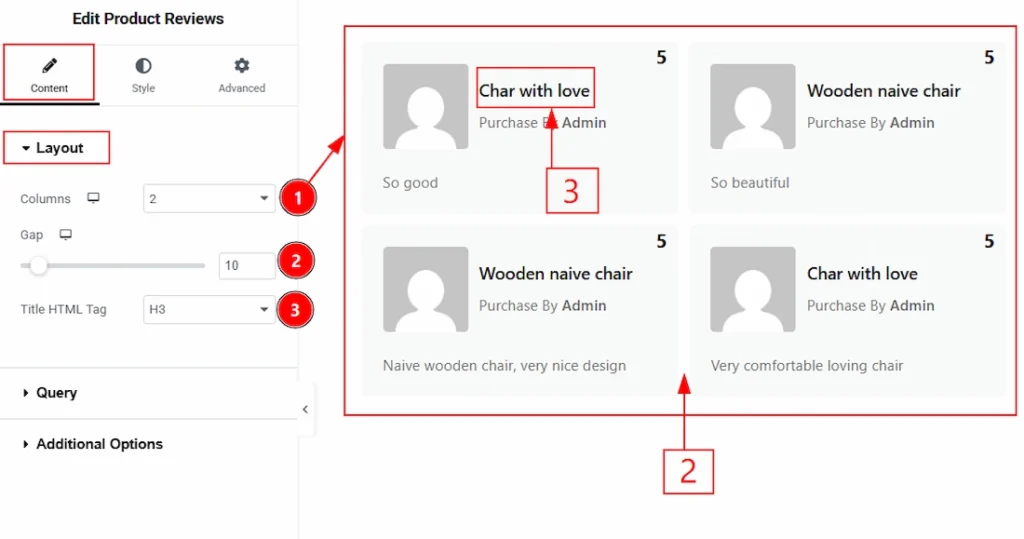
1. Column: You can set the column number that you want to show to your audience with this option.
2. Gap: You can adjust the space between the columns with this option.
3. Title HTML Tag: You can set the HTML tag for the title with this option.
Query Section #
Go to Content → Query
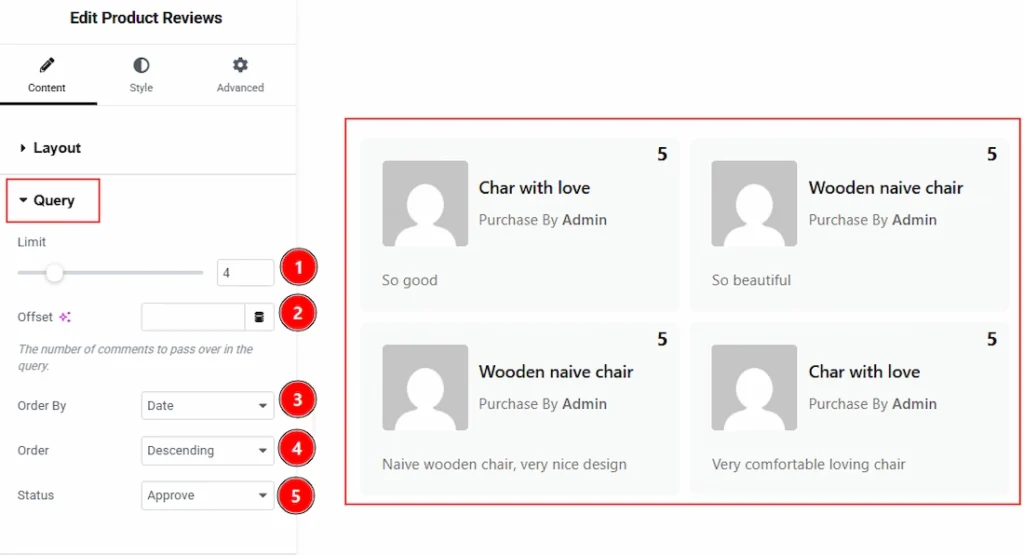
1. Limit: The Limit option lets you specify the maximum number of product reviews to display.
2. Offset: The Offset option allows you to skip a specific number of reviews before displaying the remaining results. For example, setting the offset to 2 will ignore the first two reviews and start displaying reviews from the third one onward. For keeping it blank it will start from the beginning.
3. Order By: The Order By option determines how the reviews are sorted. You can organize reviews based on criteria such as Author, Approved, Date, Content & Random options, depending on your requirements.
4. Order: The Order option defines the sorting direction of the displayed reviews. Select Ascending to show the oldest or lowest values first, or Descending to display the newest or highest values first.
5. Status: The Status option filters reviews based on their moderation status. The available status are approve, hold and all.
Additional Options Section #
Go to Content → Additional Options
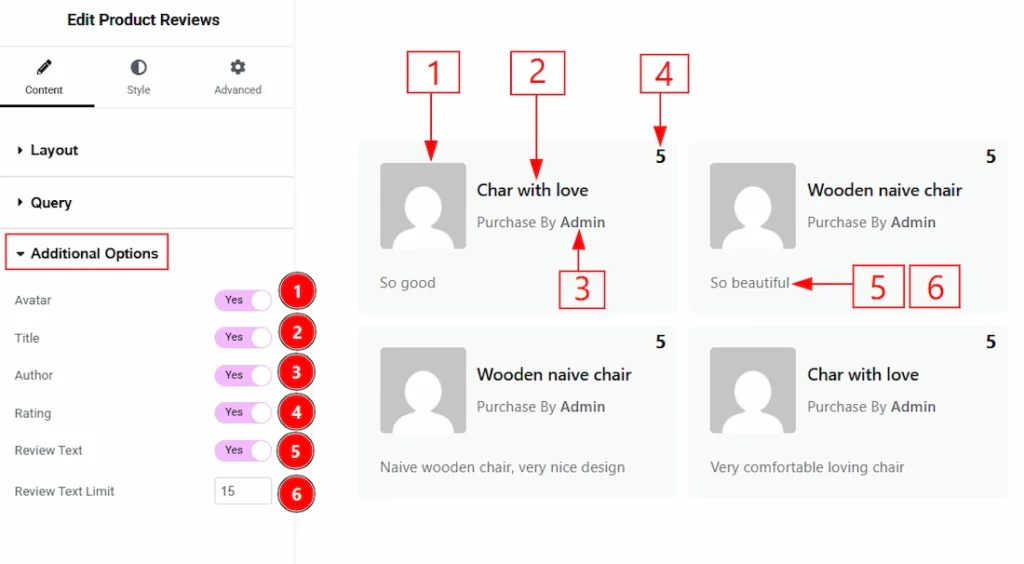
1. Avatar: Enable the switcher to show the avatar image for your audience.
2. Title: Enable the switcher to show the title to your audience with this option.
3. Author: Enable the switcher to show the author name to your audience with this option.
4. Rating: Enable the switcher to show the ratings to your audience with this option.
5. Review Text: Enable the switcher to show the review text to your audience with this option.
6. Review Text Limit: You can set the review text limit to show to your audience with this option.
Style Tab Overview #
Items Section #
Go to Style → Items
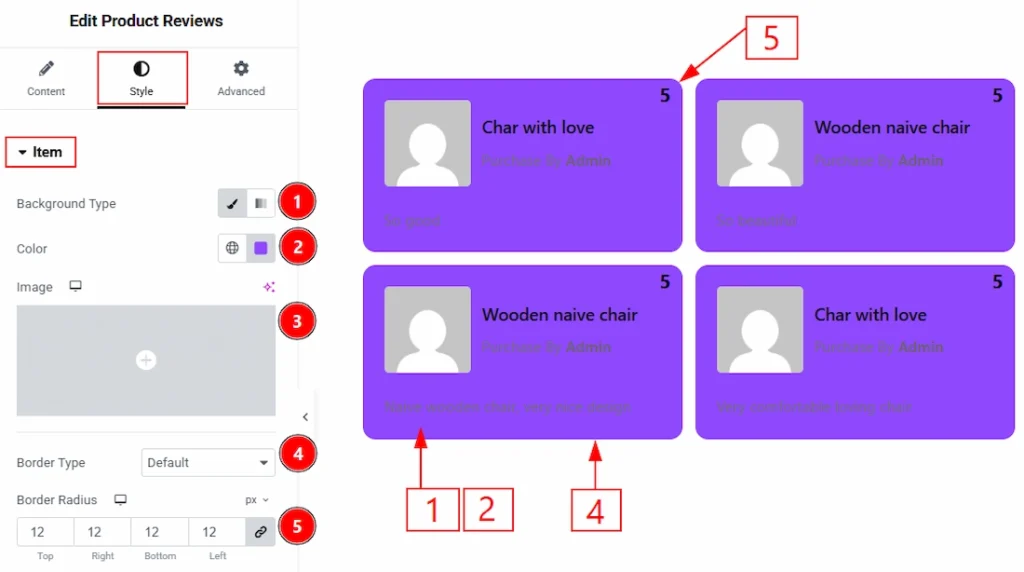
1. Background Type: You can change the background type to be classic or gradient with this option. Here, we have selected the background type as Classic.
2. Color: You can make changes to the background color with this option.
3. Image: You can change the background image with this option.
4. Border Type: You can add and change the border types with this option.
5. Border Radius: You can control the roundness of the border with this option.
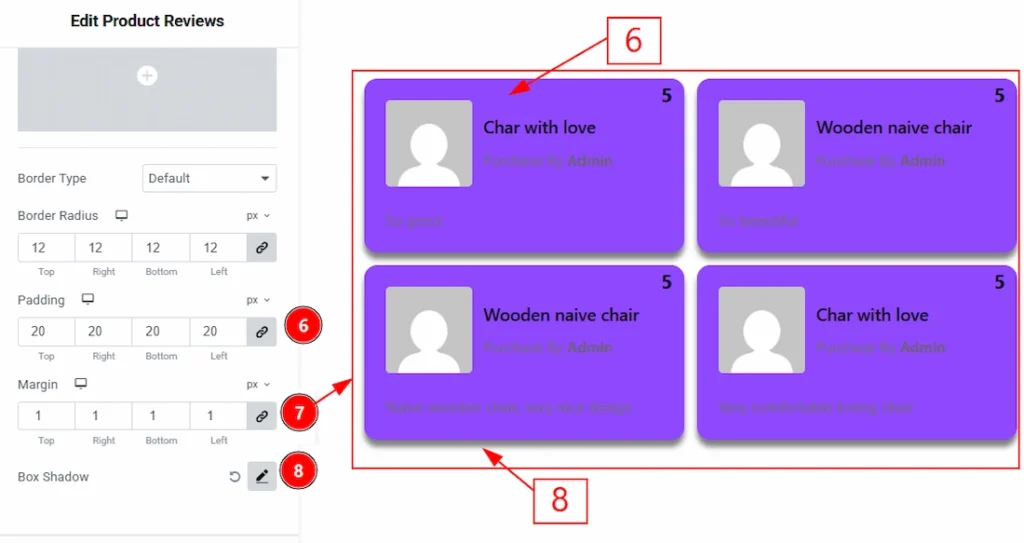
6. Padding: You can adjust the inner space of the items with this option.
7. Margin: You can adjust the space around the items field with this option.
8. Box Shadow: You can add a shadow effect to the items with this option.
Avatar Section #
Go to Style → Avatar
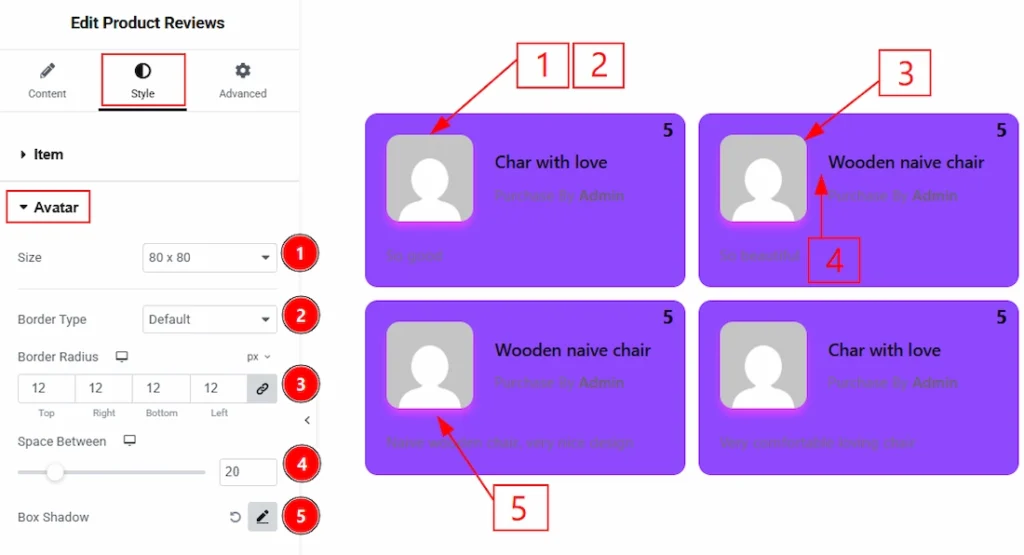
1. Size: You can make changes to the avatar size with this option.
2. Border Type: You can add and change the border types with this option.
3. Border Radius: You can control the roundness of the border with this option.
4. Space Between: You can adjust the space between the avatar and the title with this option.
5. Box Shadow: You can add a shadow effect to the avatar with this option.
Title Section #
Go to Style → Title
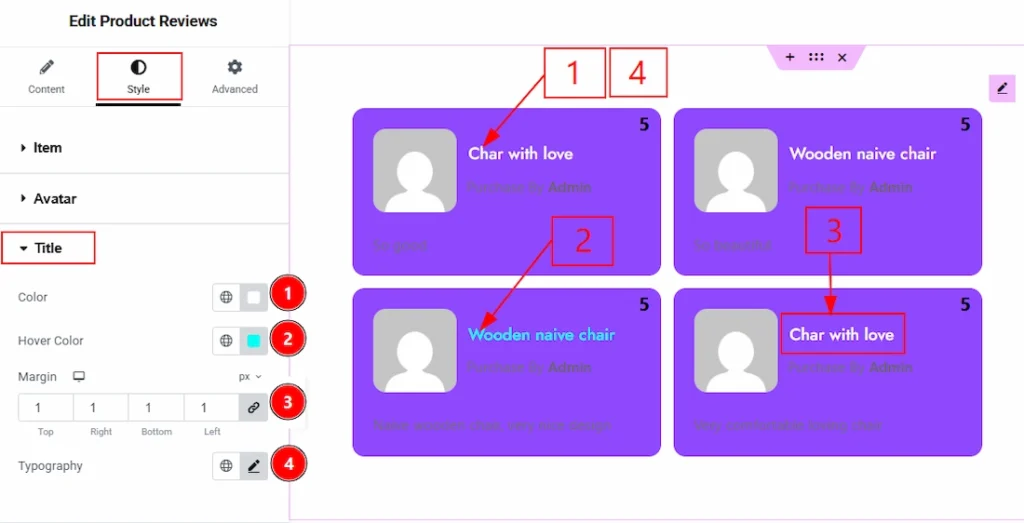
1. Color: You can make changes to the title text with this option.
2. Hover Color: You can make changes to the title text hover color with this option.
3. Margin: You can adjust the space around the title field with this option.
4. Typography: Change the font family, size, weight, transform, style, decoration, line height, letter spacing, and word spacing from here.
Text Section #
Go to Style → Text
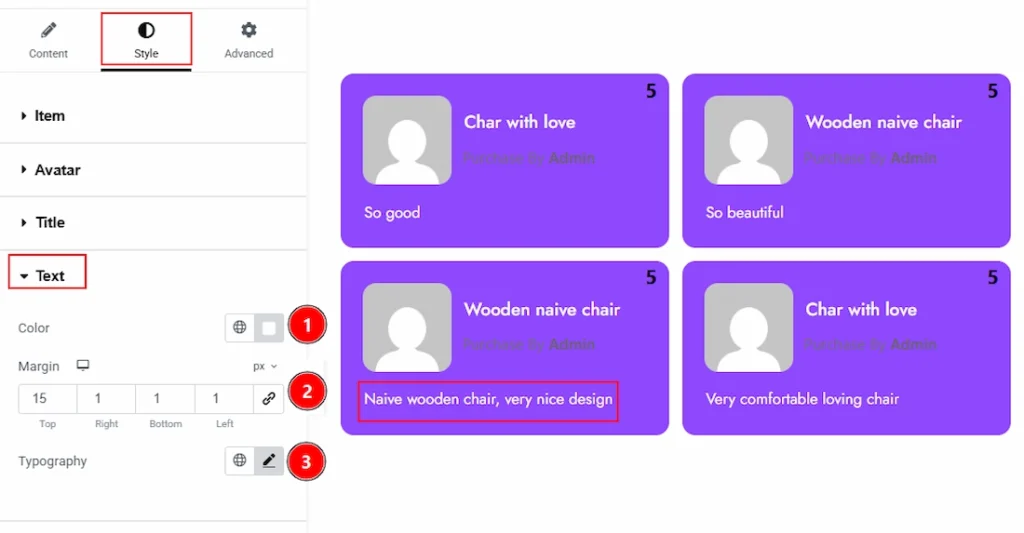
1. Color: You can make changes to the text color with this option.
2. Margin: You can adjust the space around the text field with this option.
3. Typography: Change the font family, size, weight, transform, style, decoration, line height, letter spacing, and word spacing from here.
Author Section #
Go to Style → Author
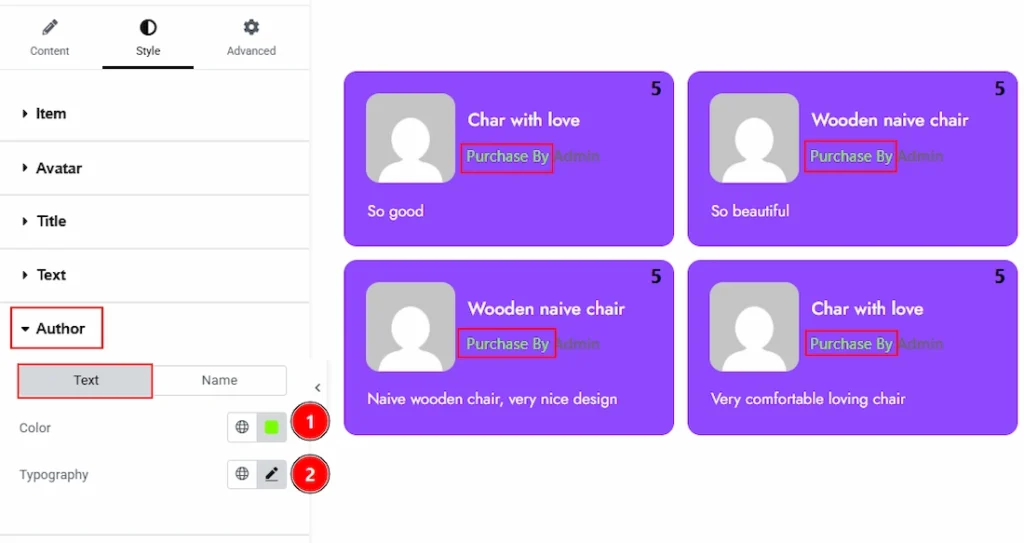
In this section, we have two more tabs. These are Text & Name. Let’s start describing the Text tab first –
1. Color: You can change the author text color with this option.
2. Typography: Change the font family, size, weight, transform, style, decoration, line height, letter spacing, and word spacing from here.
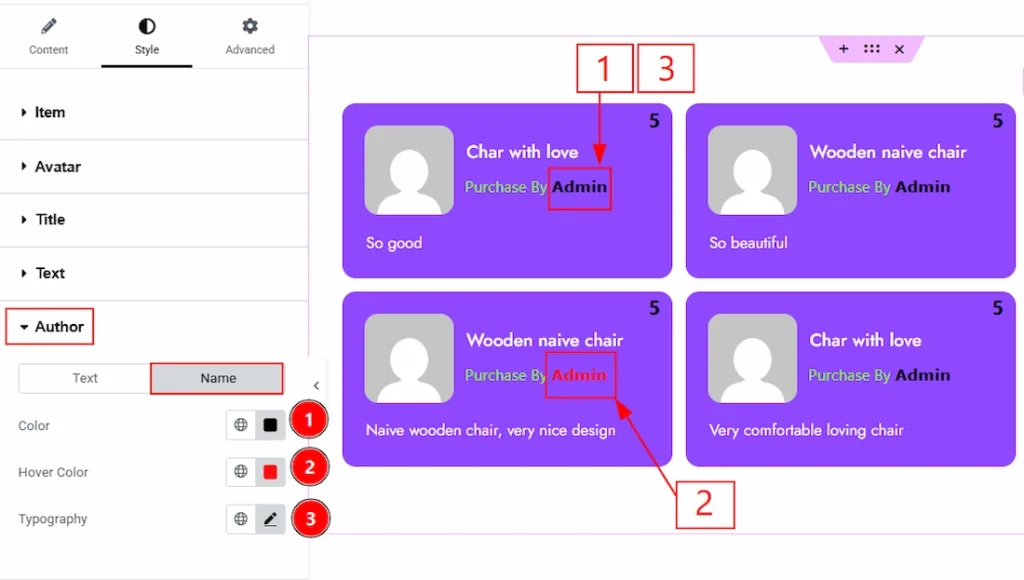
Now, let’s proceed to the Name tab –
1. Color: You can make changes to the author name text color with this option.
2. Hover Color: You can make changes to the author name text color with this option.
3. Typography: Change the font family, size, weight, transform, style, decoration, line height, letter spacing, and word spacing from here.
Rating Section #
Go to Style → Rating
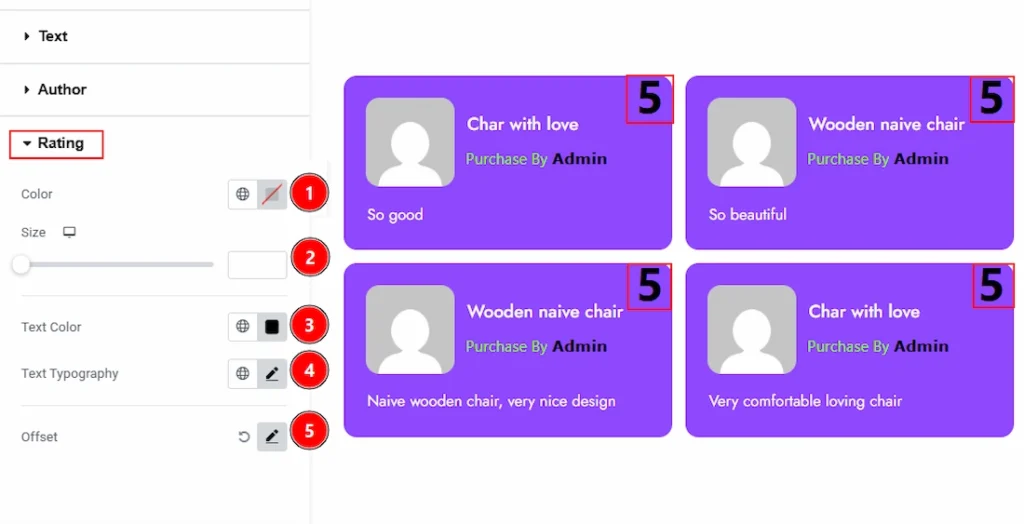
1. Color: You can make changes to the rating color with this option.
2. Size: You can adjust the ratings size with this option.
3. Text Color: You can make changes to the rating text color with this option.
4. Text Typography: Change the font family, size, weight, transform, style, decoration, line height, letter spacing, and word spacing from here.
5. Offset: You can move the rating vertically & horizontally with this option.
All done! You have successfully customized the Product Reviews widget on your website.
Video Assist #
You can also watch the video tutorial to learn more about the Product Reviews Widget. Please visit the demo page for examples.
Thanks for being with us.