


The Duplicator feature from Wow Elements allows you to quickly duplicate posts, pages, and templates with a single click. It’s ideal for saving time, replicating designs, and maintaining consistency across your website without rebuilding elements manually. With smooth integration into Elementor, this feature ensures a fast and hassle-free editing experience. This documentation will guide you through how to use and customize the Duplicator feature in Wow Elements.
Before Enabling the Duplicator Feature #
Visual of the Posts Tab #
Go to WP Dashboard → Posts
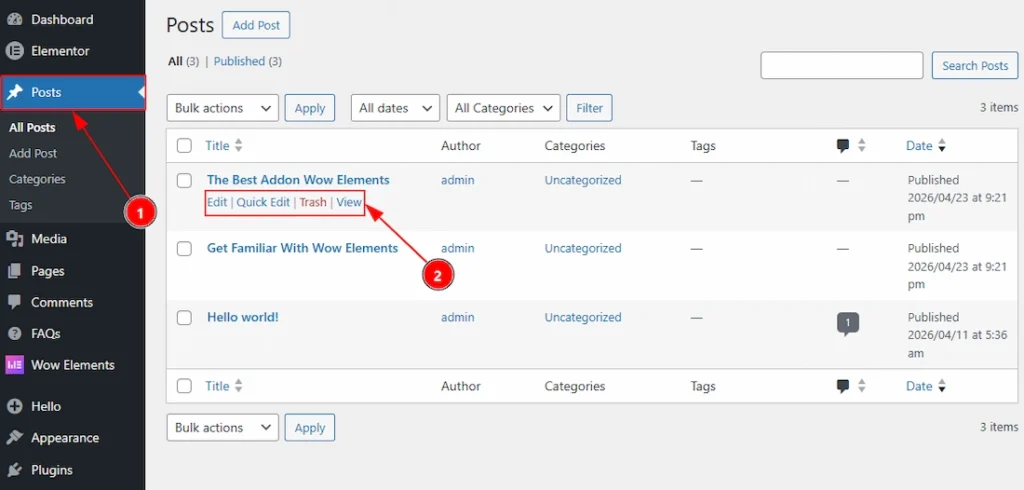
1. Go to WP Dashboard and then click on Posts.
2. Hover over a post and you will get to see the quick navigate menus such as Edit, Quick Edit, Trash & View. As the duplicator feature is not activated so you won’t see any option to duplicate the post.
Visual of the Pages Tab #
Go to WP Dashboard → Pages
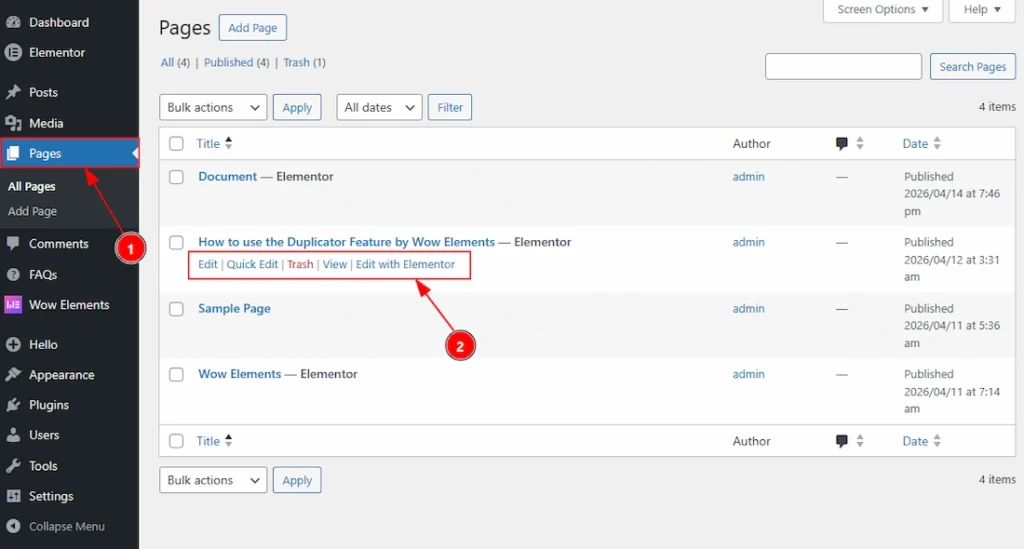
1. Go to WP Dashboard and then click on Pages.
2. Hover over a page and you will get to see the quick navigate menus such as Edit, Quick Edit, Trash, View & Edit with Elementor option. As the duplicator feature is not activated so you won’t see any option to duplicate the page.
Visual of the Templates Tab #
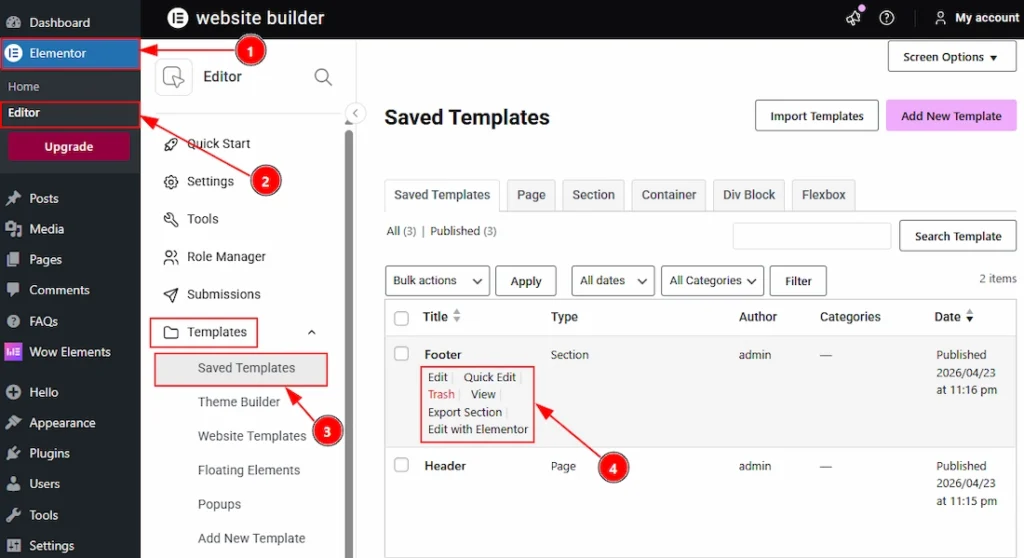
Go to WP Dashboard → Elementor (Templates)
Enable The Duplicator Feature #
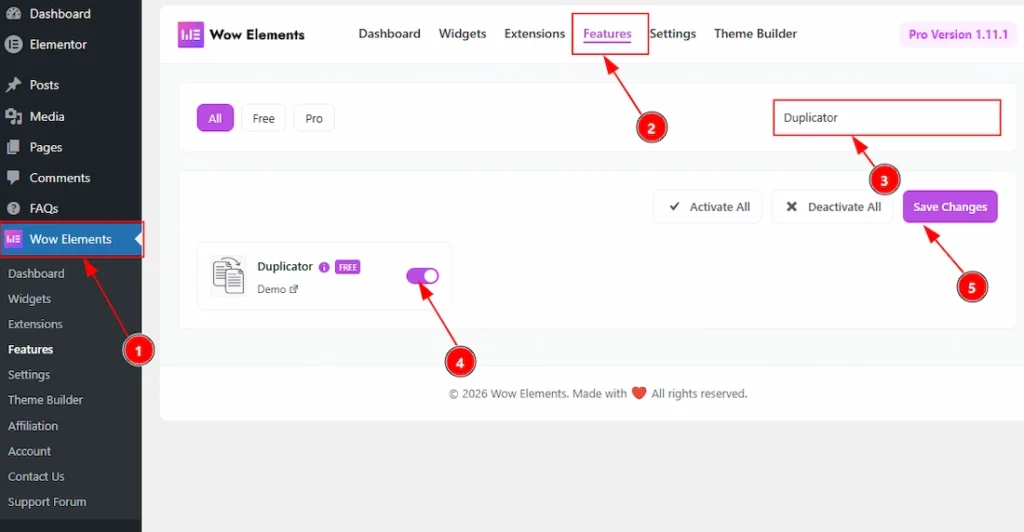
To use the Duplicator Feature from Wow Elements, first, you have to enable the feature.
- Go to WordPress dashboard → Wow Elements Plugin dashboard.
- Then, Click the Features Tab.
- Search for the Duplicator feature.
- Enable the Duplicator feature.
- Hit the Save Settings Button.
After Enabling the Duplicator Feature #
Visual of the Posts Tab #
Go to WP Dashboard → Posts
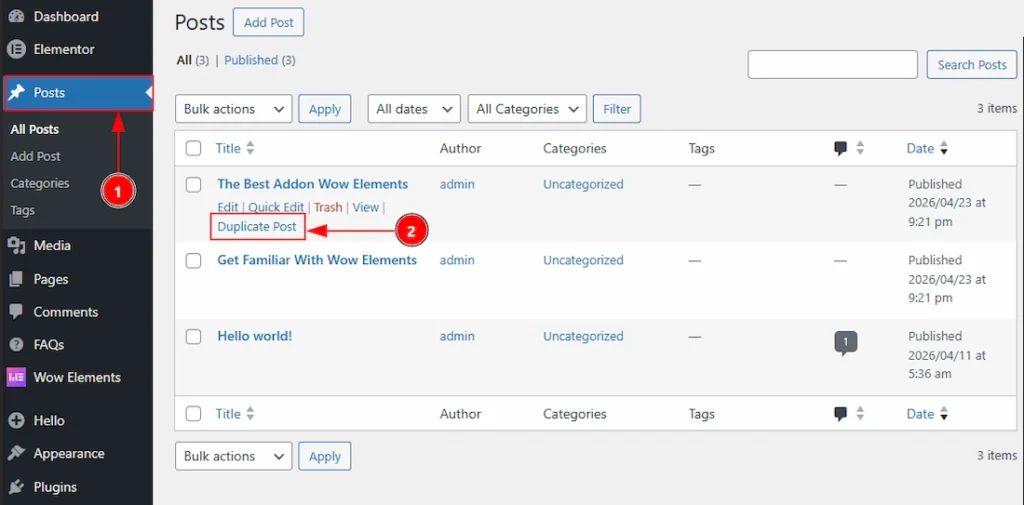
1. Go to WP Dashboard and then click on Posts again.
2. Hover over a post and now you will get to see the quick navigate menus such as Edit, Quick Edit, Trash, View & Duplicate Post. Click on the Duplicate Post option to duplicate the post.
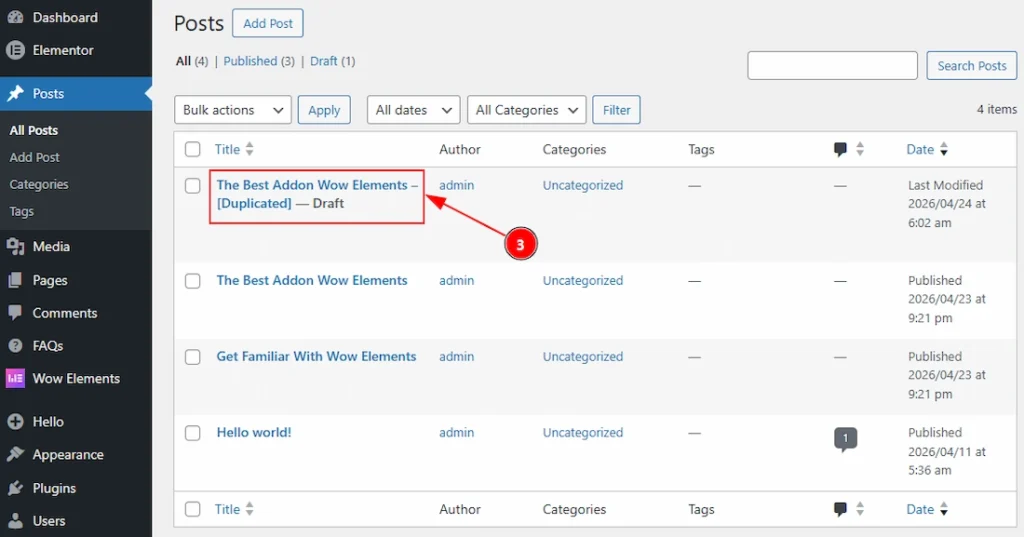
3. Now you can see the post that you have just duplicated. You will get the duplicate post as draft status. So, you can rename it or customize it as you want and then publish it.
Visual of the Pages Tab #
Go to WP Dashboard → Pages
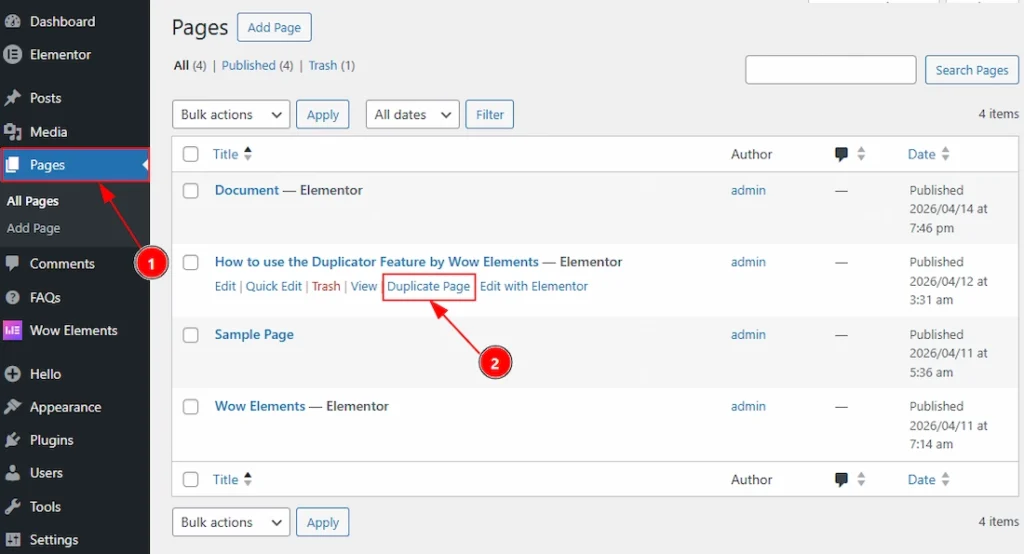
1. Go to WP Dashboard and then click on Pages again.
2. Hover over a page and now you will get to see the quick navigate menus such as Edit, Quick Edit, Trash, View, Duplicate Post & Edit with Elementor. Click on the Duplicate Page option to duplicate the page.
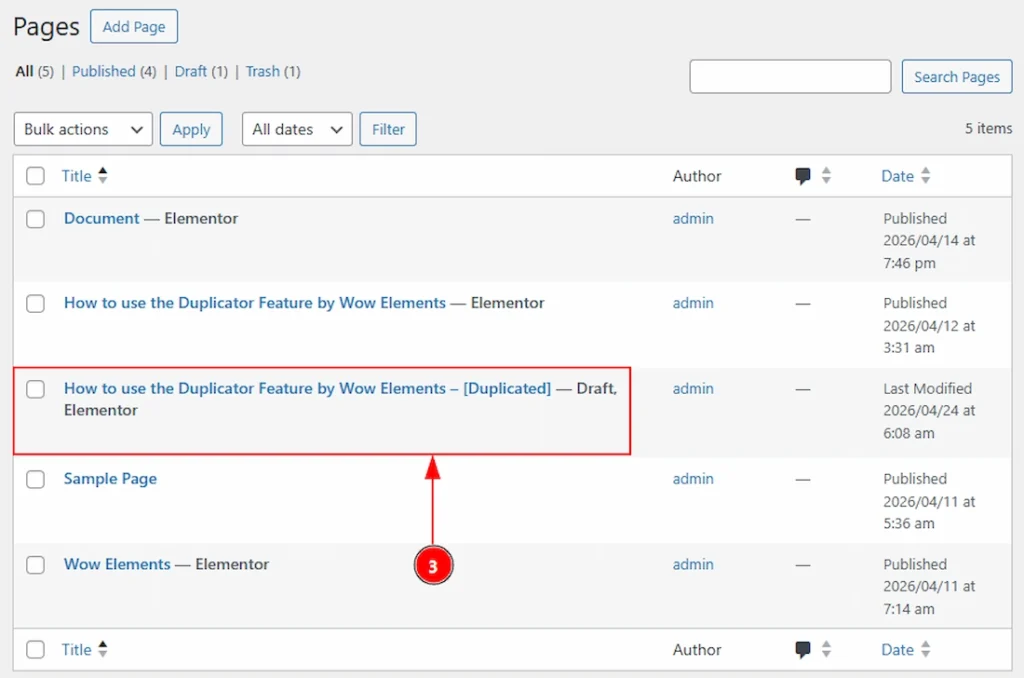
3. Now you can see the page that you have just duplicated. You will get the duplicate page in draft status. So, you can rename it or customize it as you want and then publish it.
Visual of the Templates Tab #
Go to WP Dashboard → Elementor (Templates)
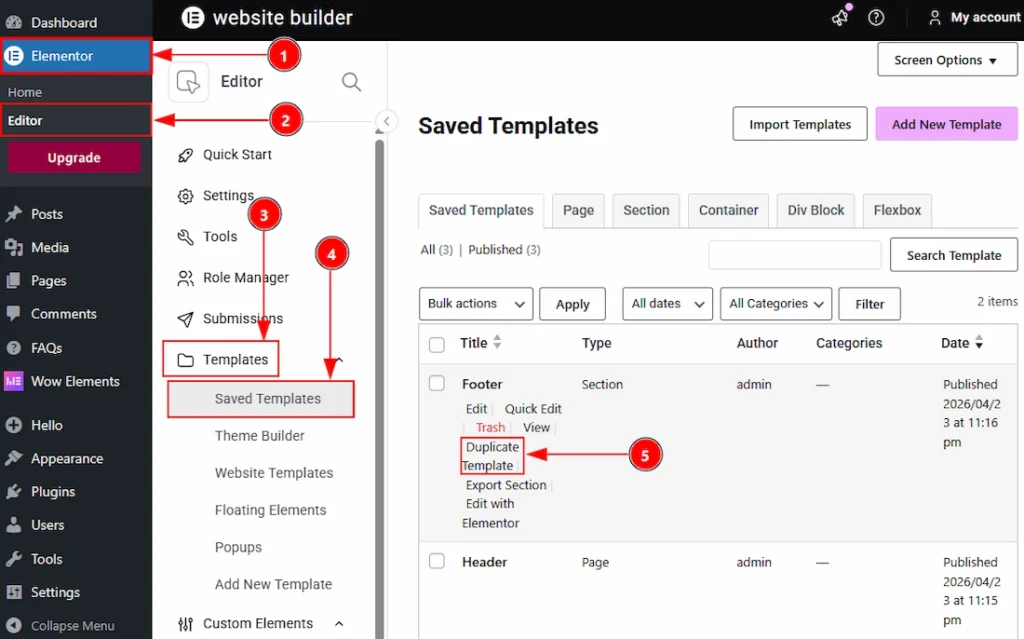
1. Go to WP Dashboard and then click on the Elementor.
2. After that, click on the Editor tab.
3. Then, Click on the Templates option.
4. Then, click on the saved templates.
5. Here below of the template name you will get to see the options named Edit, Quick Edit, Trash, View, Duplicate Template, Export Page & Edit with Elementor. Click on the Duplicate Template option to duplicate the template.
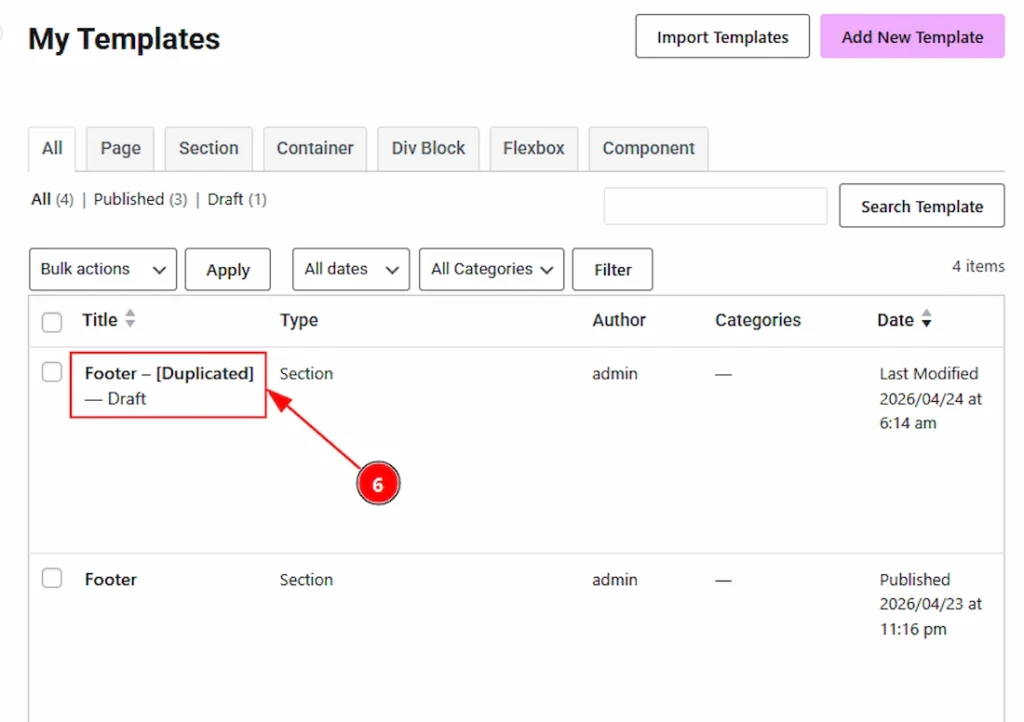
5. Now you can see the template that you have just duplicated. You will get the duplicate template in draft status. So, you can rename it or customize it as you want and then publish it.
All done! This is how you can use the Duplicator feature to make your work more easy.
Video Assist #
You can also watch the video tutorial to learn more about the Duplicator feature.
Thanks for being with us.