



The Equal Height extension in Wow Elements Pro allows you to make columns, widgets, or nested elements maintain the same height automatically, creating a clean and balanced layout across your website. It helps improve design consistency, especially for pricing tables, feature boxes, service sections, and card-based layouts with different content lengths. With flexible targeting options and easy configuration, you can quickly achieve perfectly aligned layouts without writing any custom CSS. In this documentation, we will guide you through how to use and customize the Equal Height extension in Wow Elements Pro.
Enable the Equal Height Extension #
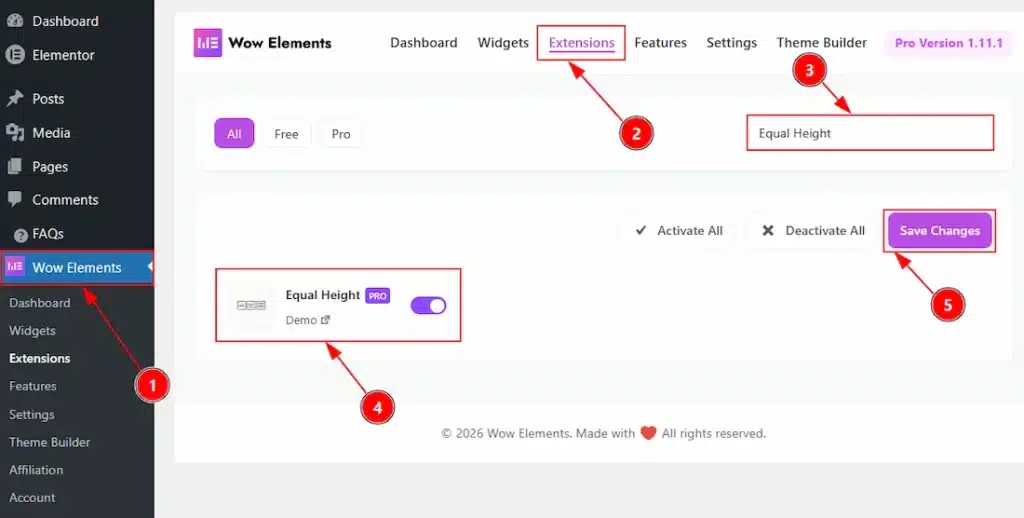
To use the Equal Height Extension from Wow Elements Pro, first, you have to enable the extension.
- Go to WordPress dashboard → Wow Elements Plugin dashboard.
- Then, Click the Extension Tab.
- Search the Equal Height Extension Name.
- Enable the Equal Height Extension.
- Hit the Save Settings Button.
Begin with a Pre-built Layout #
To begin using this feature, first select an existing widget or section from your page layout. For demonstration purposes, we are using a designed section with the Advanced Icon Box widget to showcase how the Widget Equal Height feature works. Please note that this feature does not function inside Elementor Editor Mode. To see the final result properly, you need to preview the page on the frontend.
Where To Find The Equal Height Extension #
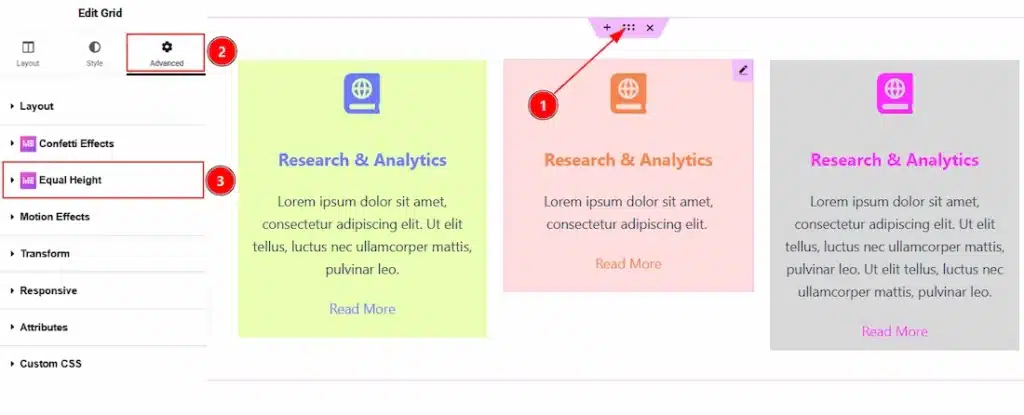
To find the Equal Height Extension, you must need to select the container where you have used the elements. Let’s see the steps below –
1. Click to any container to select the full container along with its elements.
2. Now move to the Advanced tab to customizing the container
3. Here you will found the Equal Height extension visible. You can click on it and enable it to apply the equal height functionality to the elements.
Enabling & Using the Equal Height Extension #
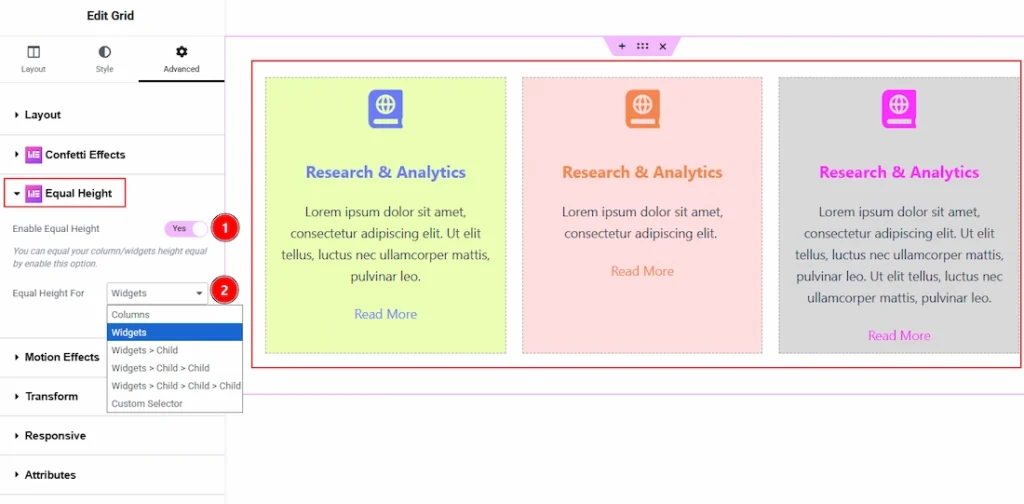
1. Enable Equal Height: Enable the switcher to make your widgets & columns equal height with this option.
2. Equal Height For: You can choose the elements where you want to apply the Equal Height. The available options are columns, widgets, Widgets > Child, Widgets > Child > child, Widget > Child > Child > Child & Custom Selector. Let’s have a look how each option works –
- Columns – Makes all selected columns the same height, regardless of the amount of content inside them.
- Widgets – Applies equal height to all widgets within the selected section or column.
- Widgets > Child – Targets the direct child elements inside widgets and makes their heights equal.
- Widgets > Child > Child – Applies equal height to the second-level child elements inside widgets for deeper layout structures.
- Widgets > Child > Child > Child – Extends equal height control to third-level nested child elements for complex layouts.
- Custom Selector – Allows you to define your own CSS selector to apply equal height to specific elements manually.
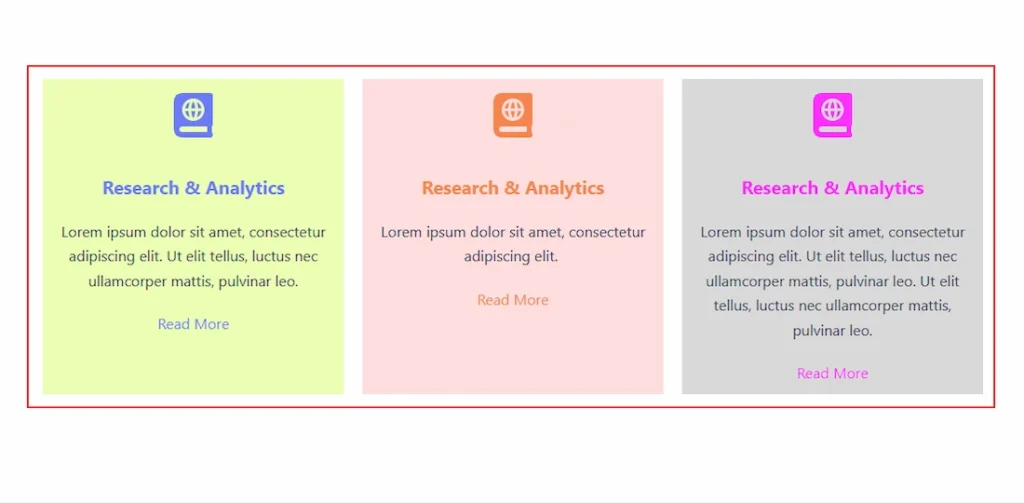
After publish the page, now you can see the changes that you have made by the Equal Height extension.
All done, You have successfully customized the Equal Height Extension on your website.
Video Assist #
You can also watch the tutorial video about the Widget Equal Height Extension. Please visit the demo page for examples.
Thanks for staying with us.