



The Live Copy Paste feature from Wow Elements allows you to instantly copy and paste sections, widgets, or entire layouts from one page to another in real time. It’s perfect for speeding up your workflow, reusing designs, and maintaining consistency across your website without rebuilding elements from scratch. With seamless integration into Elementor, this feature ensures a smooth and efficient editing experience. This documentation will guide you through how to use and make the most of the Live Copy Paste feature in Wow Elements.
Enable the Live Copy Paste Feature #
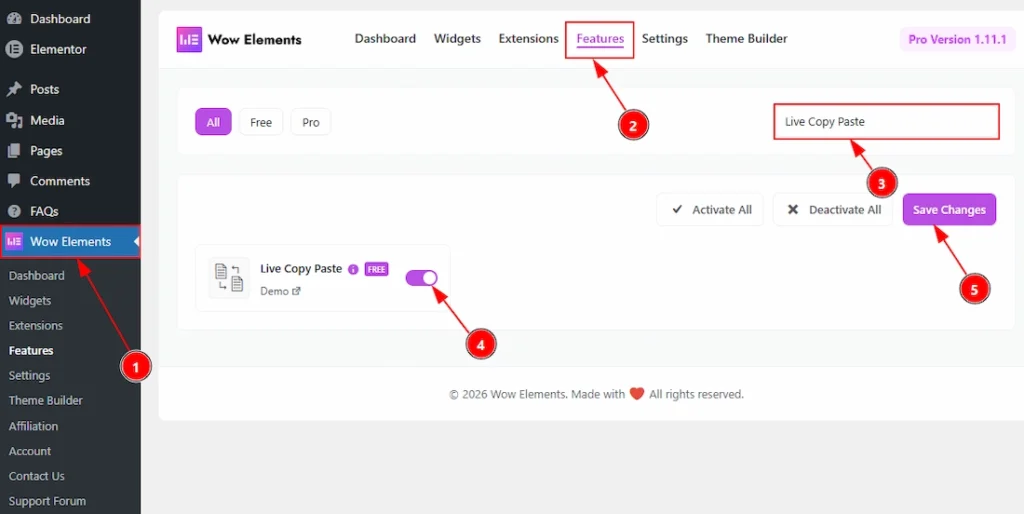
To use the Live Copy Paste Feature from Wow Elements, first, you have to enable the feature.
- Go to WordPress dashboard → Wow Elements Plugin dashboard.
- Then, Click the Features Tab.
- Search the Live Copy Paste feature Name.
- Enable the Live Copy Paste feature.
- Hit the Save Settings Button.
Copying Steps of Any Section of Demo Page #
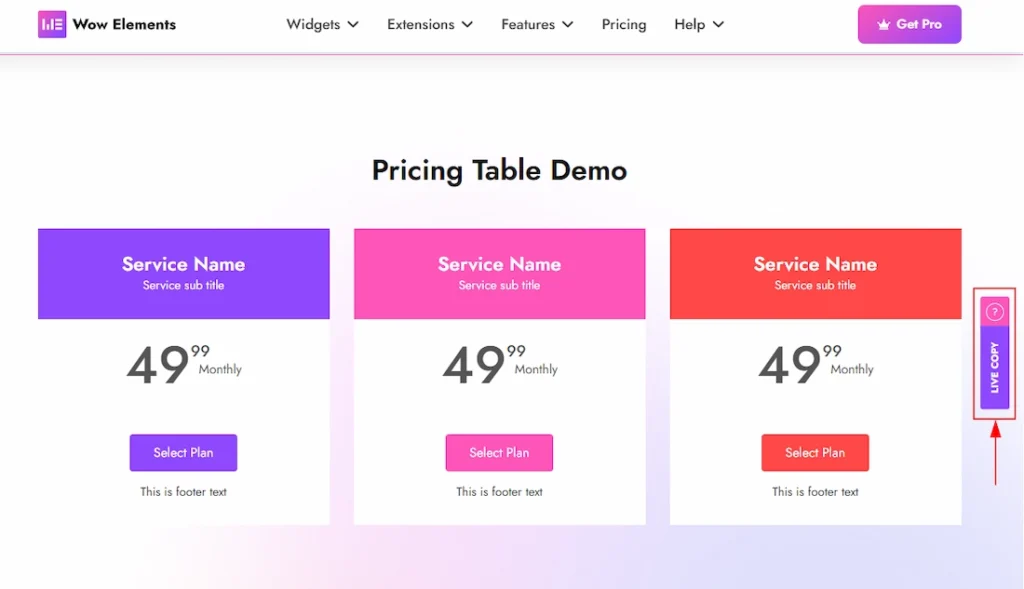
You can visit our widgets demo pages to choose the ready made widgets design that you like to live copy to your site. As an example we have choose to live copy the demo of Price Table widget of Wow Elements.
1. Go to the Demo Page of the widget.
2. You will see the Live Copy Button on the right of the container of demos.
3. Click on the Live Copy Button to copy the demo section.
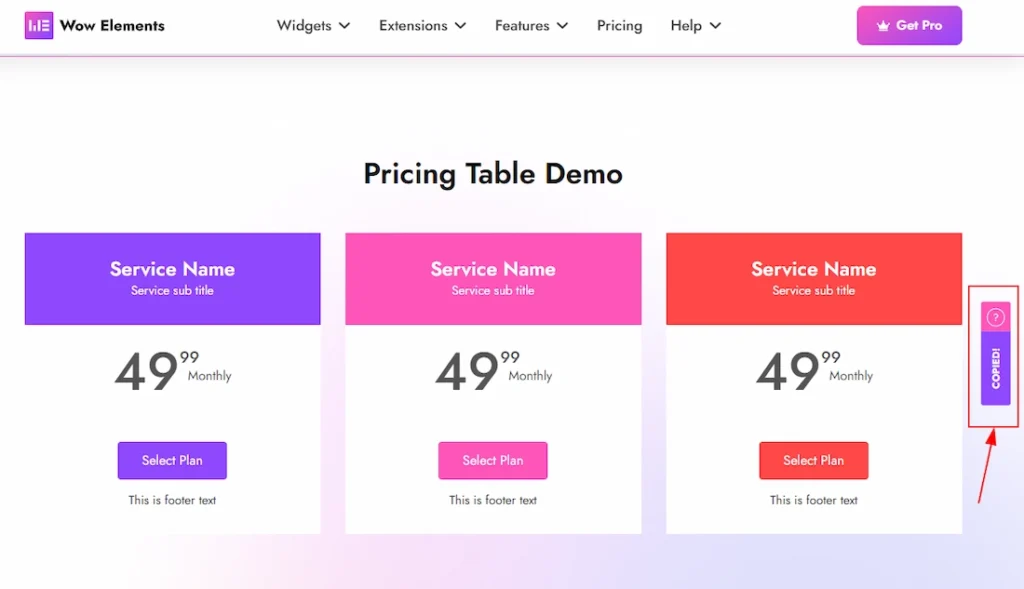
After Click on the Live Copy button you need to wait a few seconds to copy the demo section. Once the process is completed the button will appear as ”Copied“. This will help you to understand that the demo section is copied successfully and now you are ready to paste the demo design that you have copied right now to your site.
Pasting Steps of the Copied Item #
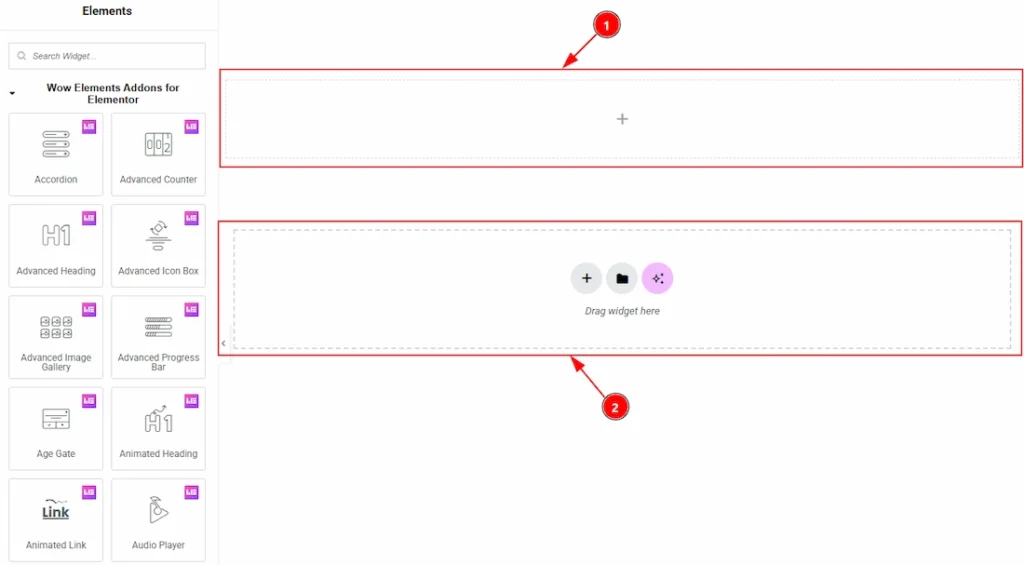
Now go to the Elementor Editor Page where you want to paste the demo design. After that follow the below process –
1. The live copy paste feature won’t work if you try to paste it into the flexbox or grid. So, don’t paste it here or else you won’t get the result that you are looking for.
2. You need to paste the copied item here to get the design that you copied from wow elements widget’s demo. Instead of paste on the flexbox or grid, please paste here to get a proper result.
Note: [ Don’t Paste it Any Section / Container ] Just paste on the BOX As shown in the Screenshot.
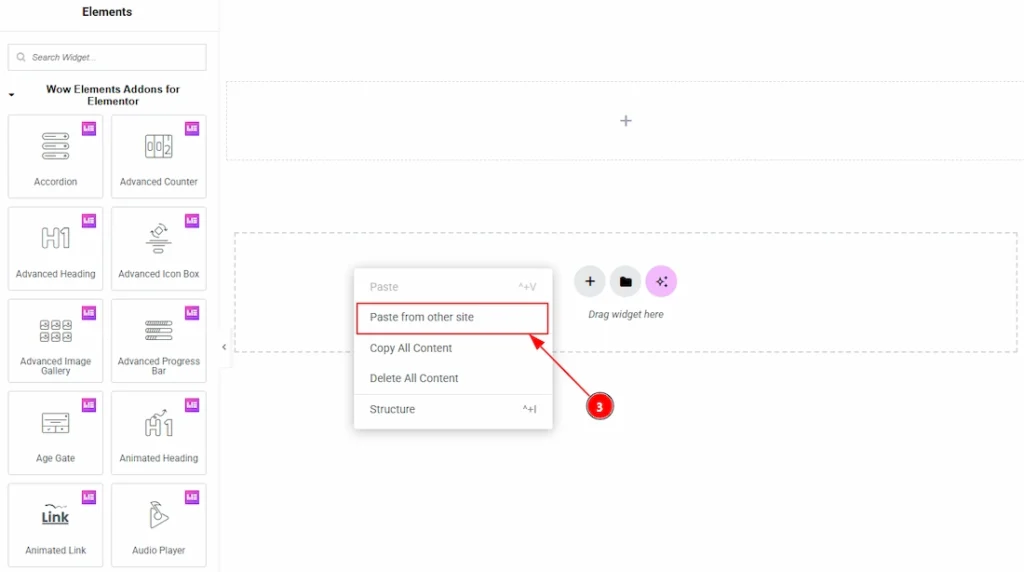
3. Now write click on your mouse and a popup will appear, just click on the Paste from other site option.
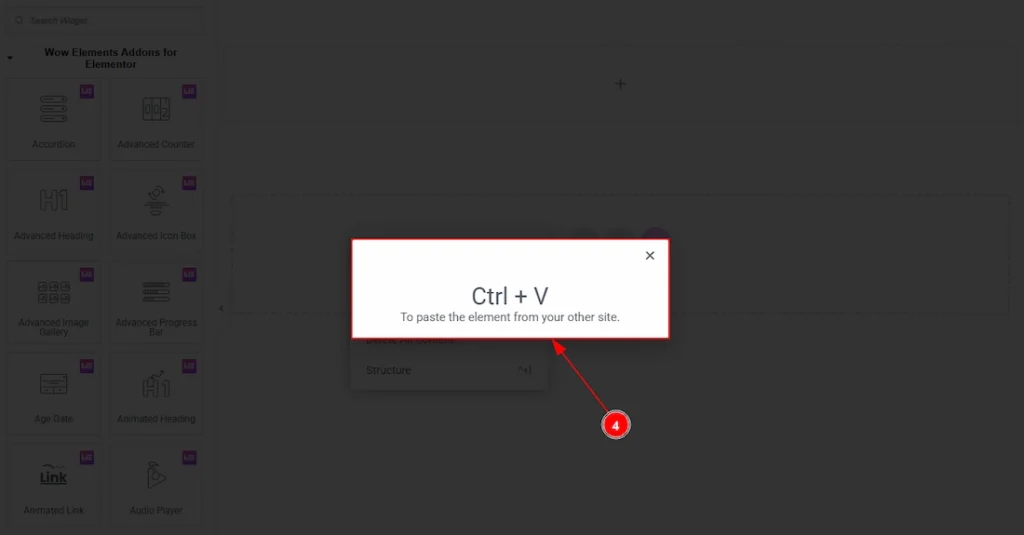
4. Another pop will arrive to the screen and here you will get to see a command that you have to follow. Press as per the command on your keyboard and instantly load to paste the copied item. The command can be differ as per your device you use. For mac it’s shows different command than the windows. Please make sure you have followed to command and press the keyboard as per that.
Note: Press Command + V for Mac & press Ctrl + V for Windows.
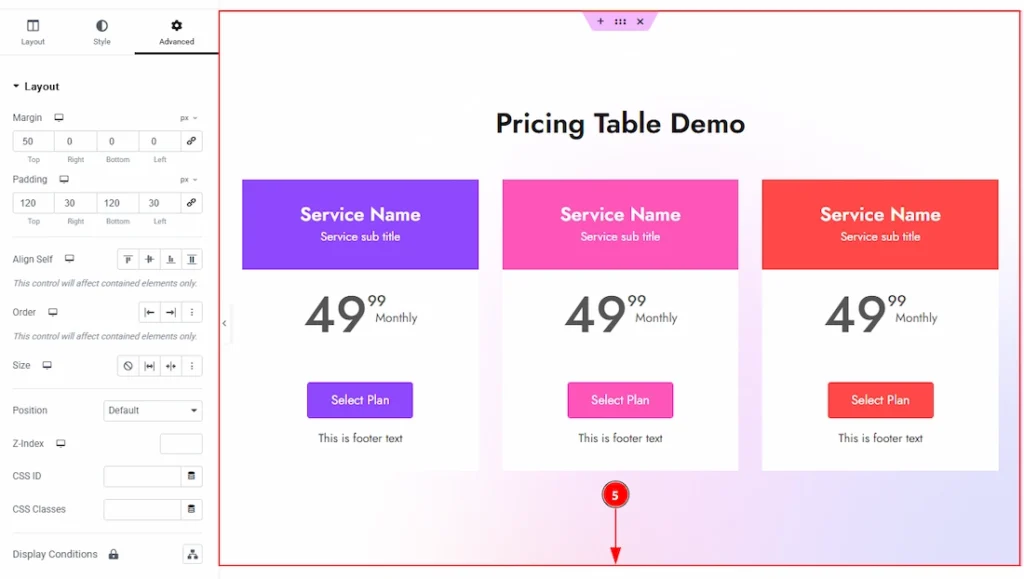
5. Then the section that you have copied will appear in the edit page as you see in the Demo / Templates Section.
All done, you have successfully completed using the Live Copy Paste feature on your site. Now you can make changes to the design as you want by changing it’s content, color and so more as you prefer.
Video Assist #
You can also watch the video tutorial to learn more about the Live Copy Paste feature. The video is coming soon. Please visit the demo page for examples.
Thanks for being with us.