



The Product Price widget from Wow Elements Pro is designed to dynamically display the price of the current WooCommerce product within your website layouts. It is primarily used in the Theme Builder to create custom Single Product templates, allowing product pricing information to be automatically pulled and displayed for each individual product. With flexible styling and typography controls, you can easily customize the appearance of product prices to match your store’s branding and improve the overall shopping experience. In this documentation, we will guide you through how to use and customize the Product Price widget in Wow Elements Pro.
Enable the Product Price Widget #
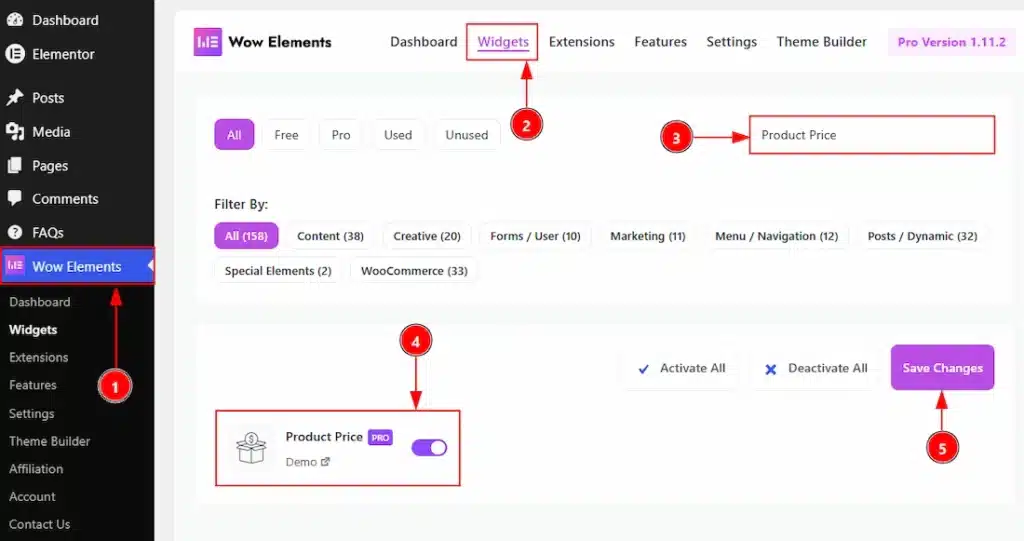
To use the Product Price by Wow Elements Pro, first, you have to enable the widget.
- Go to WordPress Dashboard → Wow Elements Pro Plugin dashboard.
- Then Click the Widgets Tab.
- Search the Product Price Widget Name.
- Enable the Product Price Widget.
- Hit the Save Settings Button.
Note: You must need to download the WooCommerce plugin first and activate the plugin to get the option to enable the widget.
Things That Must Need To Do Before Using The Widget #
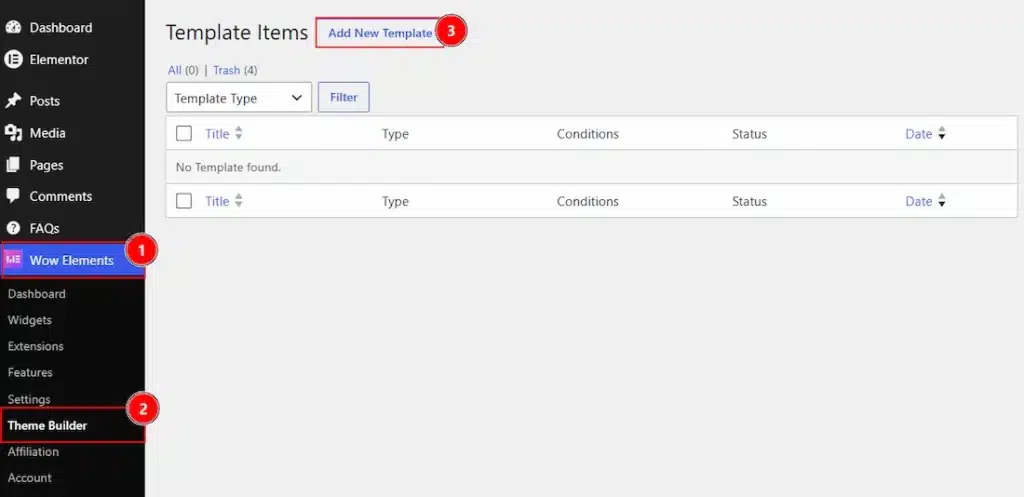
1. Go to WP Dashboard → Wow Elements.
2. Click on the Theme Builder Tab.
3. Now, click on the Add New Template to create new template.
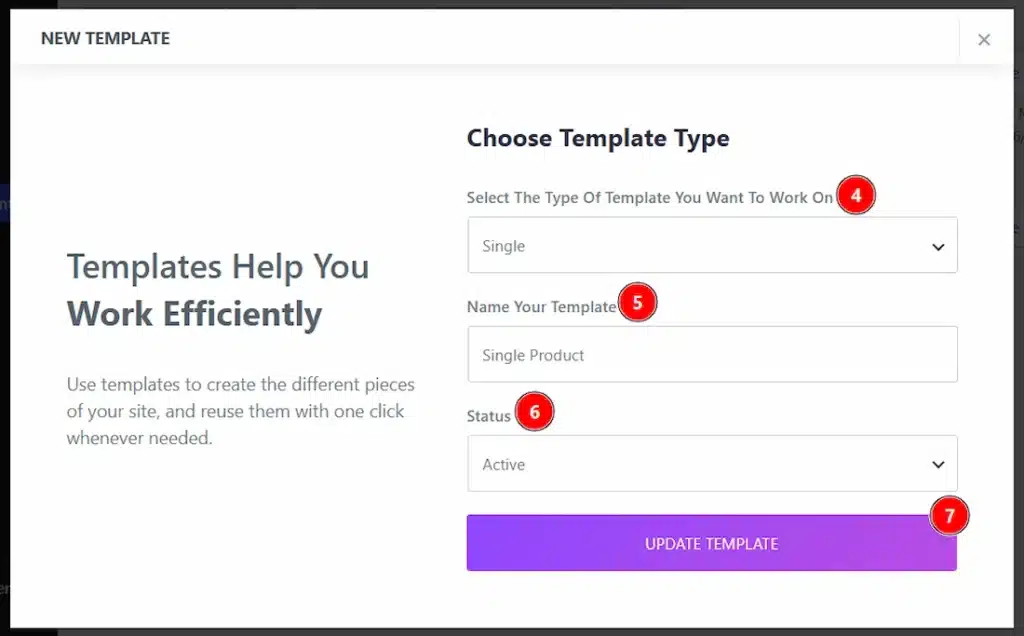
4. Here, in this field you have to select the type of template where you want to work. We have selected the Product Type Single category template.
5. You can set a name for your template in this field.
6. You can set the status of the template to active or inactive with this option.
7. You can click on the create template button to complete the creation and once it created it will automatically redirect your to the elementor editor to create your design.
Note: You must have to activate the WooCommerce plugin and also you must have some active products.
Inserting the Product Price widget #
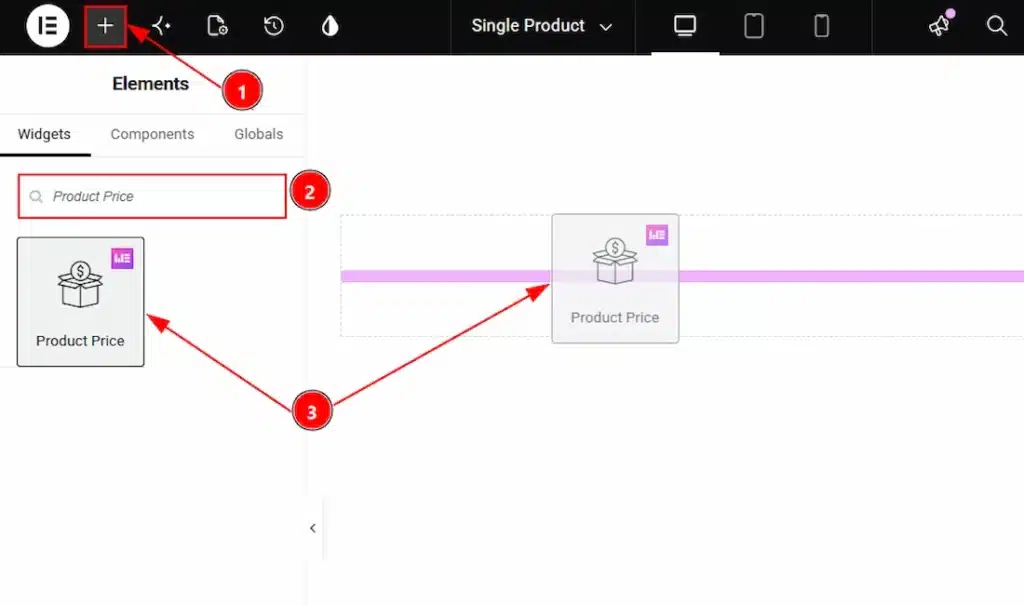
After the editor open within the theme builder, please do the followings to use the Product Price widget –
1. Hit the “+” icon Button.
2. Search the Product Price widget.
3. Drag the widget and drop it on the editor page
Style Tab Overview #
Product Price Section #
Go to Style → Product Price
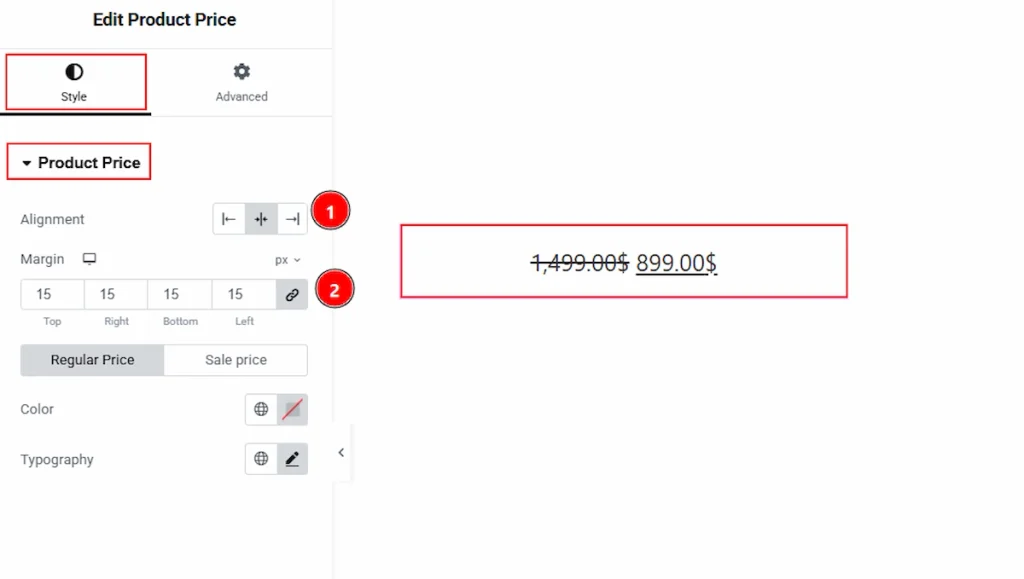
1. Alignment: You can set the position of the product price to left, center o right with this option.
2. Margin: You can adjust the space around the product price field with this option.
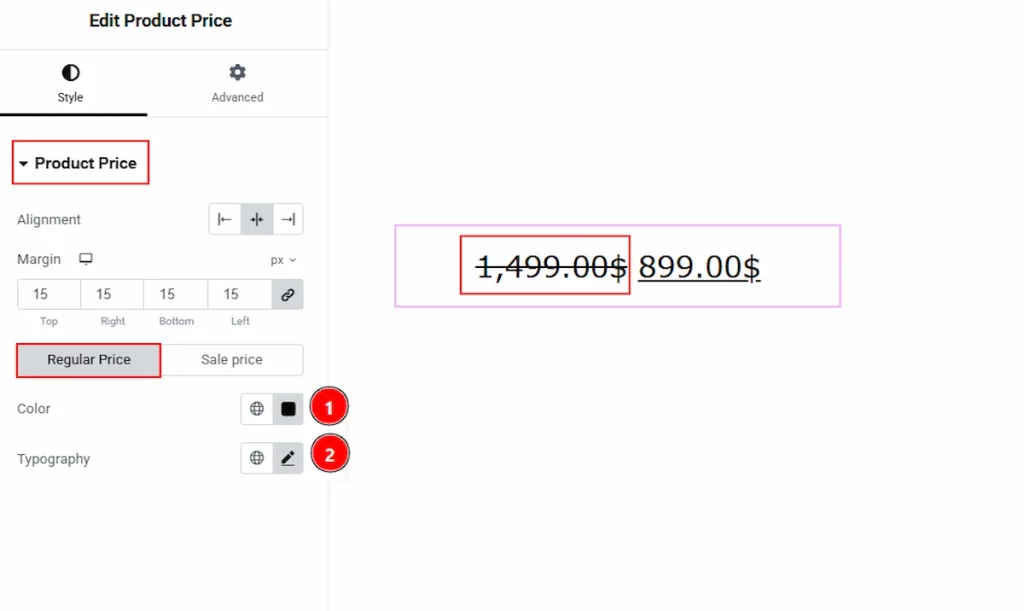
In this section, we have two more tabs. These are Regular Price & Sale Price. Let’s start with the regular price tab first –
1. Color: You can make changes to the regular price color with this option.
2. Typography: Change the font family, size, weight, transform, style, decoration, line height, letter spacing, and word spacing from here.
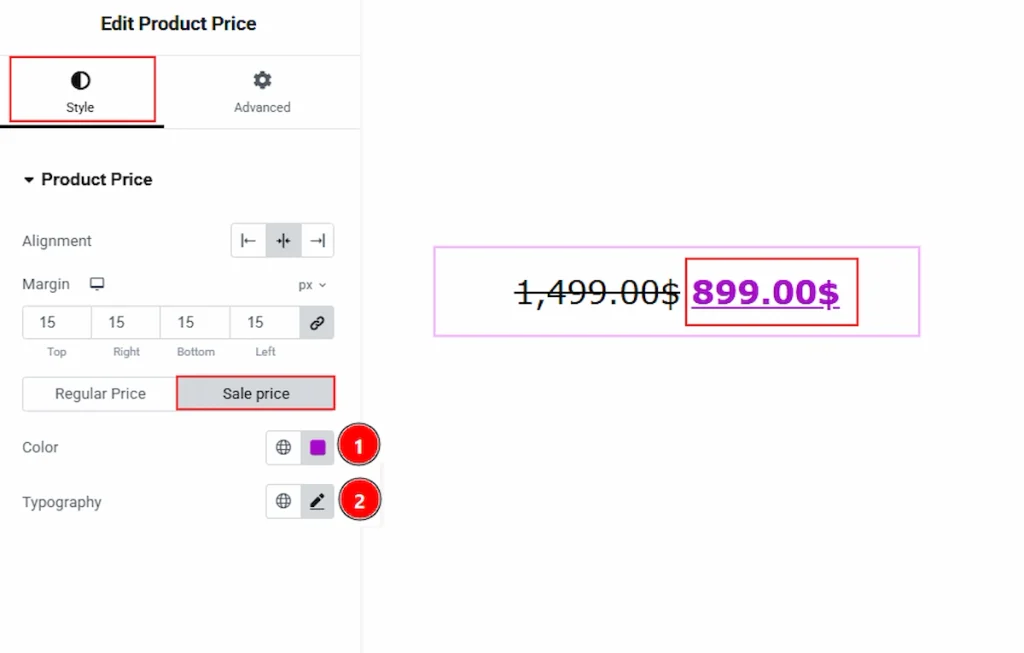
Now let’s proceed to the sale price tab –
3. Color: You can make changes to the sale price color with this option.
4. Typography: Change the font family, size, weight, transform, style, decoration, line height, letter spacing, and word spacing from here.
Video Assist #
You can also watch the video tutorial to learn more about the Product Price Widget. Please visit the demo page for examples.
Thanks for being with us.