

The Advanced Progress Bar widget from Wow Elements allows you to visually display progress, skills, or statistics using modern and fully customizable progress bars. It helps you present data such as percentages, achievements, or project status in an engaging and easy-to-understand format, enhancing both design and user experience. With flexible styling, layout variations, and animation options, you can create eye-catching progress indicators that seamlessly match your website’s design. In this documentation, we will guide you through how to use and customize the Advanced Progress Bar widget in Wow Elements.
Enable The Advanced Progress Bar Widget #
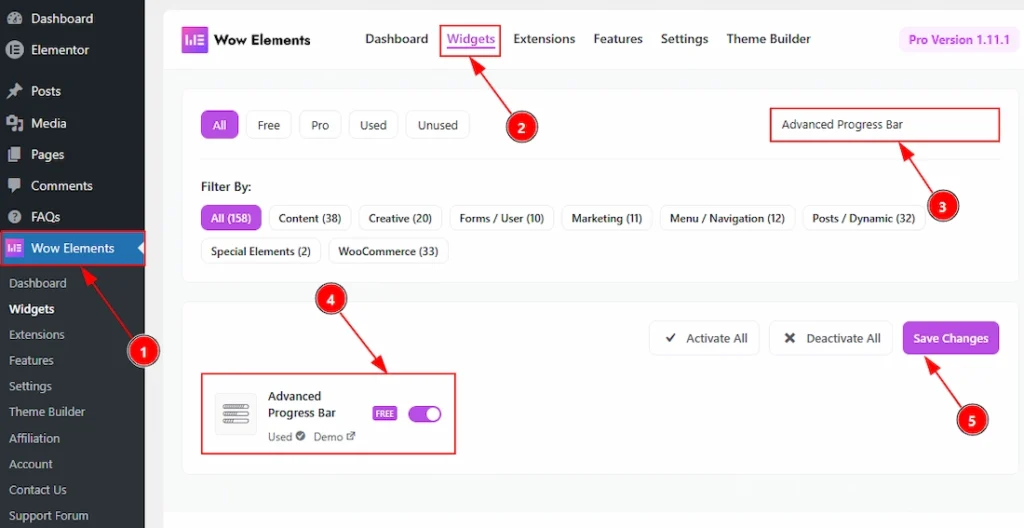
To use the Advanced Progress Bar widget from Wow Elements, first, you have to enable the widget.
- Go to WordPress dashboard → Wow Elements Plugin dashboard.
- Then, Click the Widgets Tab.
- Search the Advanced Progress Bar Widget Name.
- Enable the Advanced Progress Bar Widget.
- Hit the Save Settings Button.
Inserting The Advanced Progress Bar Widget #
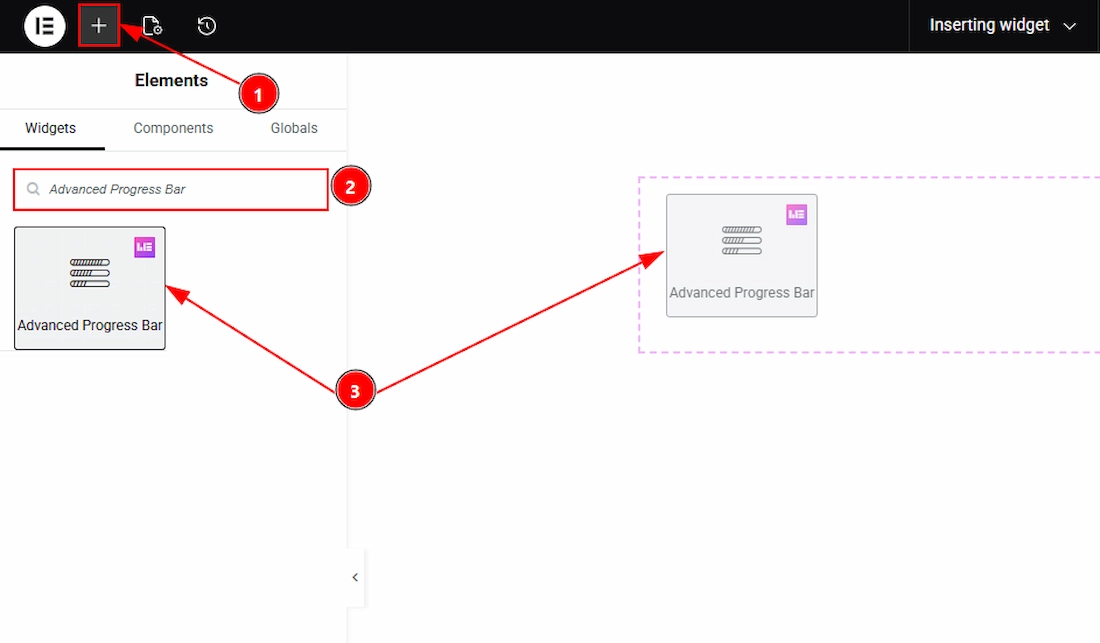
1. Go to the Elementor Editor Page and hit the “+” icon Button.
2. Search the Advanced Progress Bar name.
3. Drag the widget and drop it on the editor page.
Content Tab Overview #
Progress Bars section #
Go to Content → Progress Bars
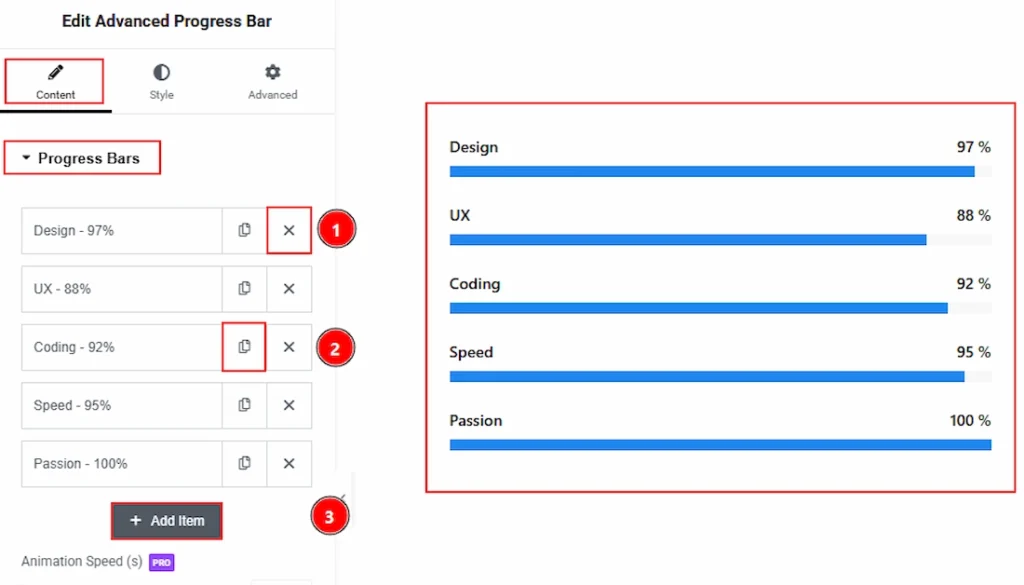
1. Close Button: You can click on the close button to close/delete the progress bar item.
2. Copy Button: You can click on the copy button to duplicate the item.
3. Add Item: You can click on this button to add more progress bar items to use it as per your preference.
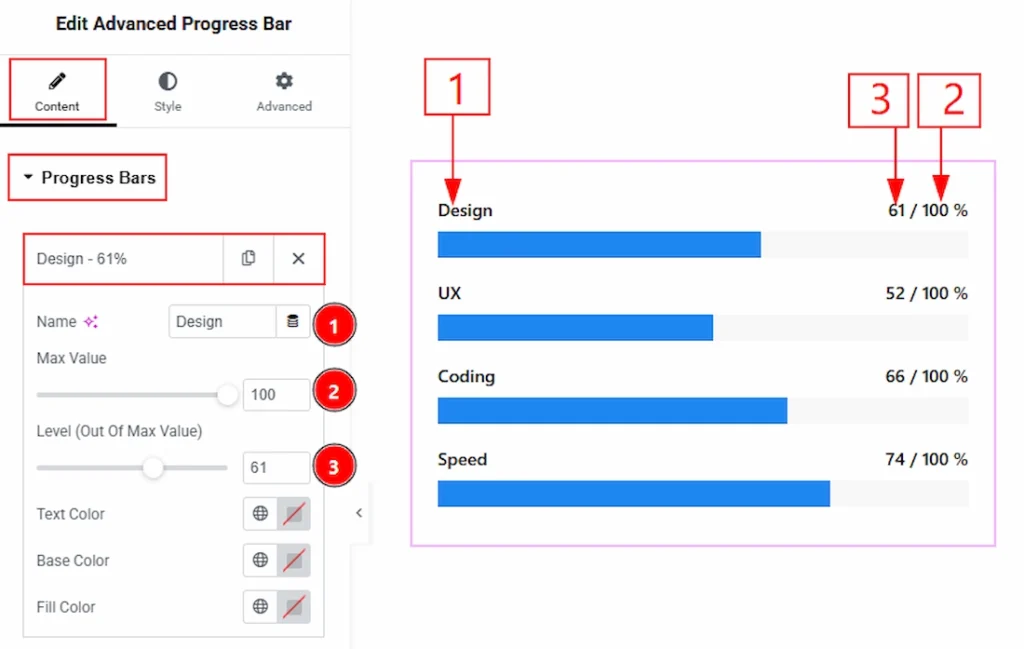
Inside each bar item, you will get the following customization options-
1. Name: You can add and make changes to the progress bar name in this field.
2. Max Value: You can set the item’s max value from here.
3. Level(Out of Max Value): You can set the level as you prefer to show to your audience out of the max value.
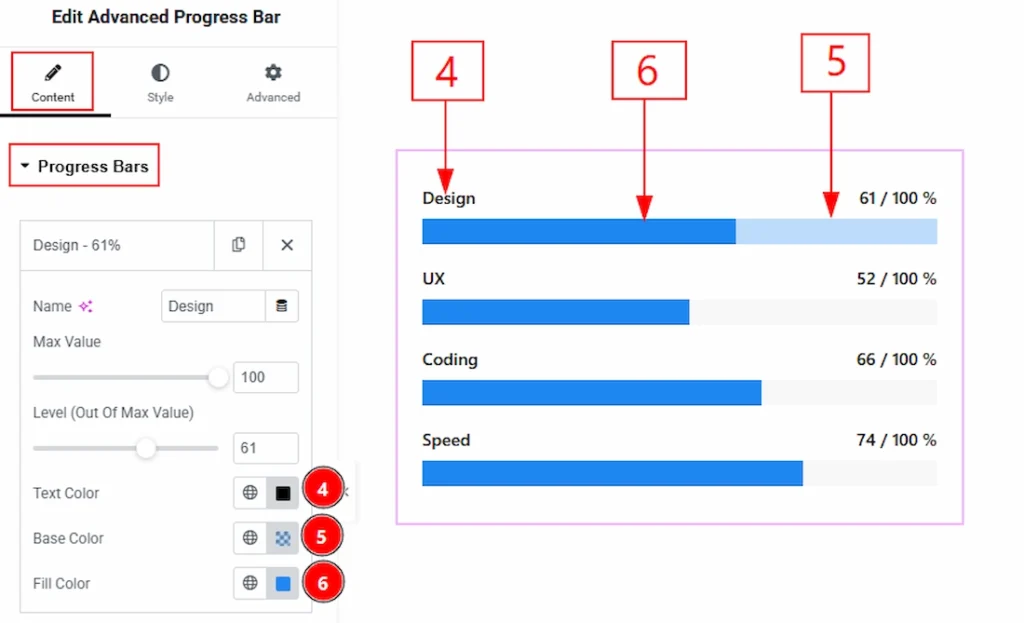
4. Text Color: You can make changes to the text color with this option.
5. Base Color: This option lets you change the bar’s base color.
6. Fill Color: You can make changes to the progress bar fill color with this option.
When Progress Style is Default #
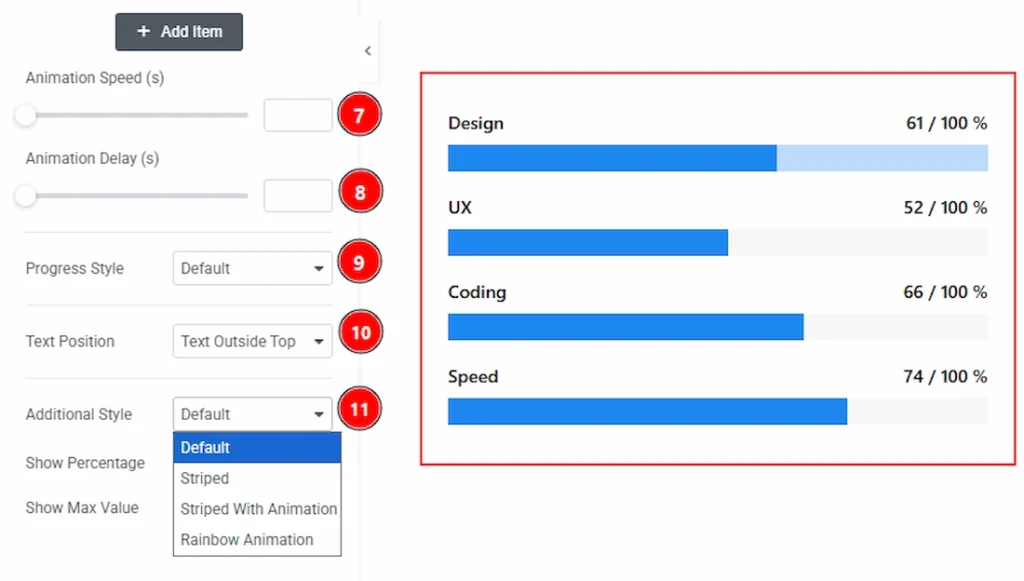
7. Animation Speed: You can set the progress bar animation speed from here.
8. Animation Delay: You can set the progress bar animation delay time from here.
9. Progress Style: From here, you can choose your preferred progress style – Default, Percentage with progress, and inner content.
10. Text Position: You can set the bar text position- Text outside top, or text outside bottom.
11. Additional Style: You can set the additional style- Default, Striped, Striped with Animation, and Rainbow Animation.
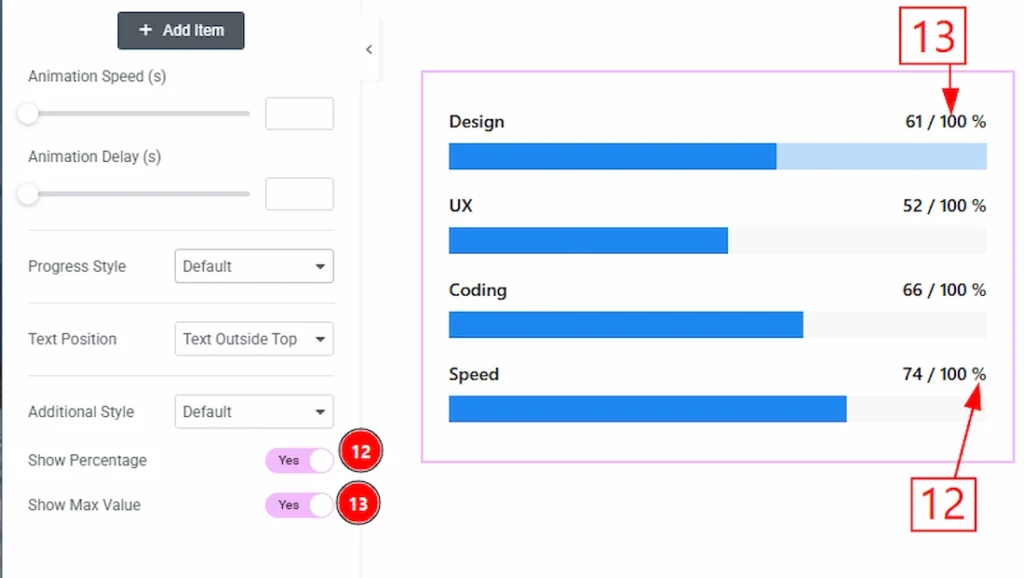
12. Show Percentage: Enable/disable the show percentage switcher button to show/hide the percentage from the bar.
13. Show Max Value: Enable/disable the show Max Value switcher button to show/hide the Max Value from the bar.
When Progress Style is Percentage with progress #
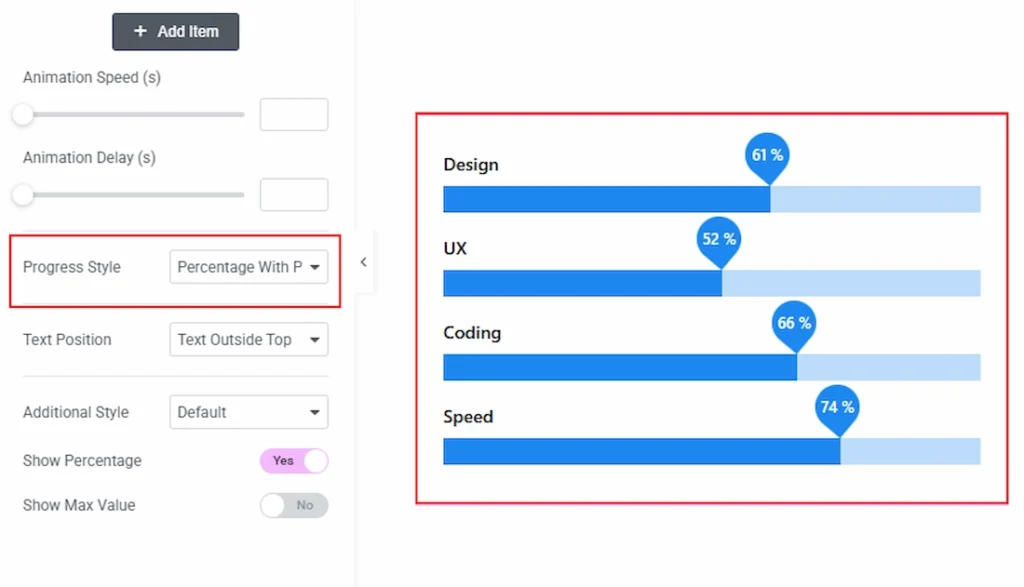
If you select the progress style as Percentage with Progress, you will get to see this layout.
When Progress Style is Inner Content #
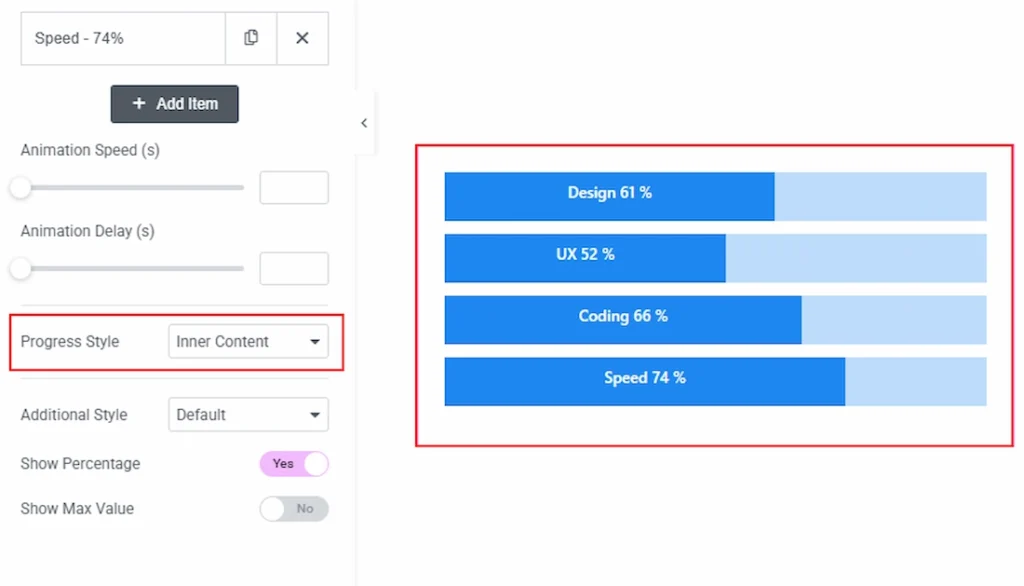
If you select the progress style as Inner Content, you will get to see this layout.
Style Tab Overview #
Progress Bars Section #
Go to Style → Progress Bars
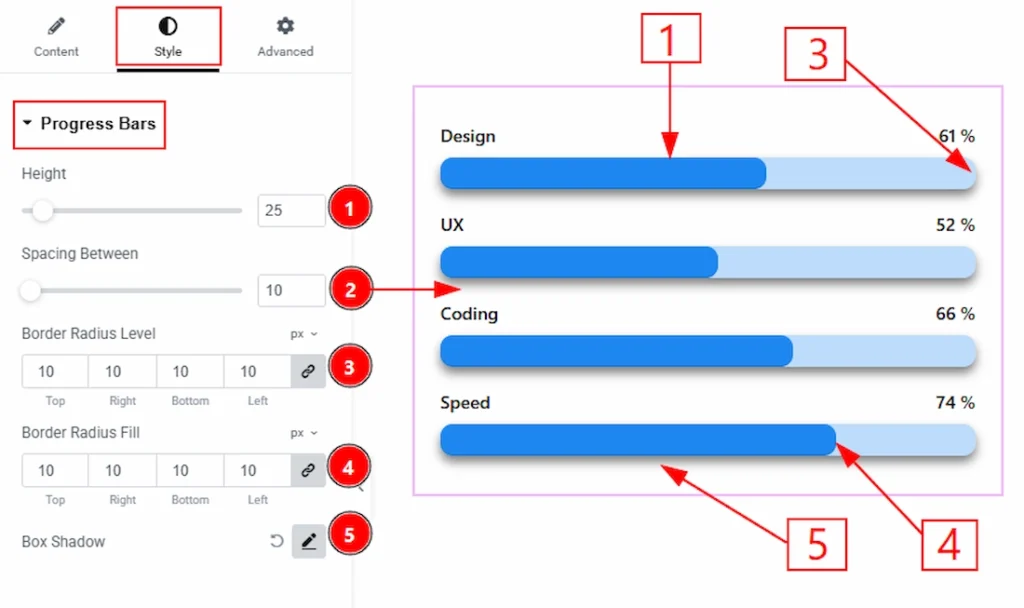
1. Height: You can adjust the height of the progress bar items with this option.
2. Spacing Between: You can adjust the space between progress bar items with this option.
3. Border Radius Level: You can adjust the roundness of the border of level with this option.
4. Border Radius Fill: You can adjust the bar border fill border from here.
5. Box Shadow: You can add the box shadow for the progress bar from here.
Content Section #
Go to Style → Content
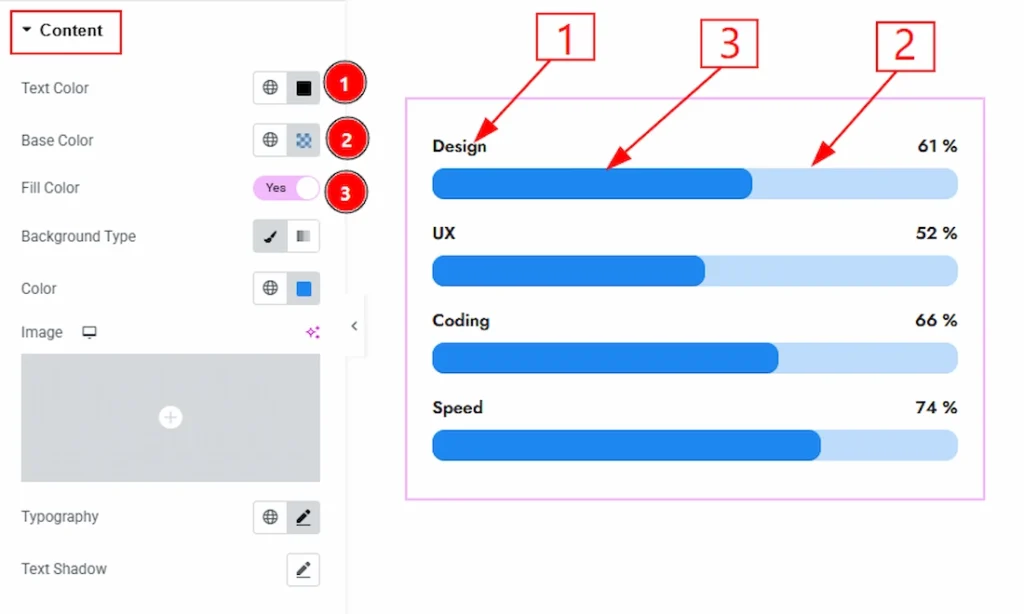
1. Text Color: You can make changes to the item text color with this option.
2. Base Color: This option lets you change the bar’s base color.
3. Fill Color: Enable the switcher to get more option to change the fill color.
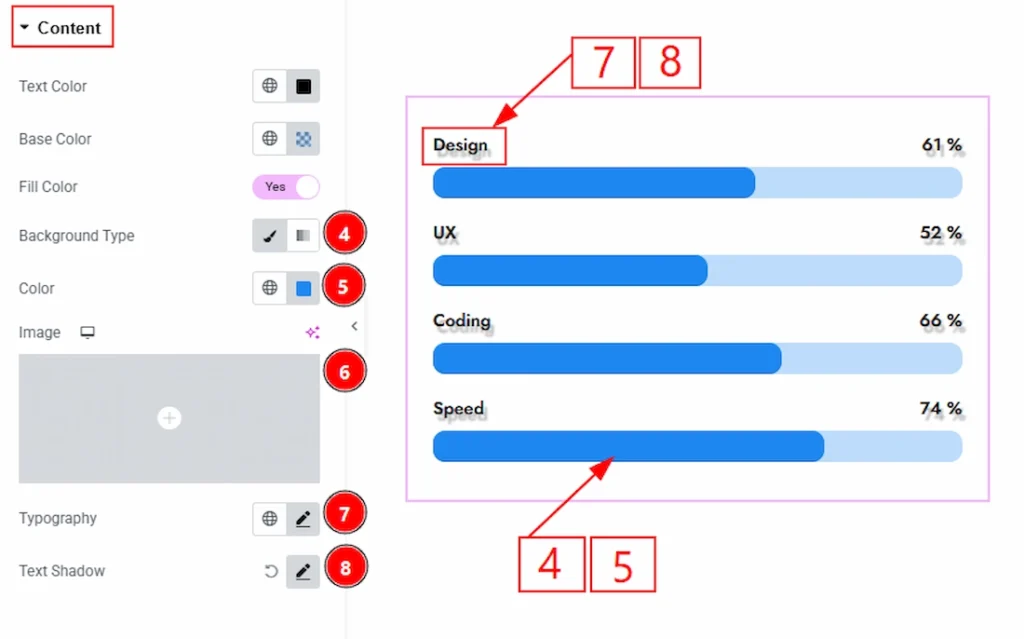
4. Background Type: You can choose the background type to be classic or gradient with this option.
5. Color: You can change the bar filled background color with this option.
6. Typography: Change the font family, size, weight, style, transform, decoration, line height, letter spacing, and word spacing from here.
7. Text Shadow: You can add the bar text shadow from here.
All done! You have successfully customized the Advanced Progress Bar widget on your website.
Video Assist #
You can watch this quick video to learn about the Advanced Progress Bar widget. Please visit the demo page for examples.
Thanks for staying with us.